Oracle Cloud Infrastructure

インテグレーションバージョン1.1.0

選択中の Datadog サイト () では、Oracle Cloud Infrastructure インテグレーションはサポートされていません。

概要

Oracle Cloud Infrastructure (OCI) は、エンタープライズ規模の企業で利用されている infrastructure-as-a-service (IaaS) と platform-as-a-service (PaaS) です。ホスティング、ストレージ、ネットワーキング、データベースなど、30 を超えるマネージド サービスを包括的に提供しています。

Datadog の OCI インテグレーションを利用すると、メトリクス、ログ、リソース データを通じて OCI 環境を包括的に可視化できます。これらのデータは、ダッシュボードの構築やトラブルシューティングに役立つだけでなく、セキュリティやコンプライアンス態勢の監視にも活用できます。

セットアップ

メトリクスの収集

OCI QuickStart は Preview 提供中です。今すぐ申請するには、このフォーム をご利用ください。

Datadog の OCI QuickStart は、数回クリックするだけで OCI のインフラとアプリケーションの監視を始められる、フル マネージドのセットアップです。OCI QuickStart は、メトリクス、ログ、リソース データを Datadog に転送するために必要な基盤を構築し、新しいリソースや OCI コンパートメントも自動的に検出してデータ収集に取り込みます。

:

  • デフォルトで送信されるのはメトリクスのみです。このセットアップが完了したら、Datadog OCI インテグレーション タイル からログ収集とリソース データ収集を有効にしてください。
  • 2025 年 7 月 15 日時点で存在していた OCI Commercial リージョンはすべてサポートされています。この日以降に追加された OCI リージョンは、現時点ではサポートされていません。

To set up the infrastructure for metric and log forwarding to Datadog:

このインテグレーションでは、Datadog へデータを転送するために Oracle Service Connector Hub を使用する必要があります。セットアップを完了する前に、サービス制限の引き上げを申請する ことをおすすめします。必要となる Service Connector Hub のおおよその数は次のとおりです:

$$\text"Service Connector Hubs" = \text"テナンシ内のコンパートメント数" / \text"5"$$

  • Your OCI user account needs the Cloud Administrator role to complete these steps
  • You must be logged into OCI in the tenancy you want to integrate with
  • You must be logged into OCI with the Home Region selected in the top right of the screen
  • Your OCI user account needs to be in the Default Identity Domain
  • Your OCI user account must be able to create a user, user group, and dynamic group in the Default Identity Domain
  • Your OCI user account must be able to create policies in the root compartment

Datadog OCI integration tile

  1. Datadog OCI インテグレーション タイル に移動し、Add New Tenancy をクリックします。
  2. Select or create a Datadog API key to use for the integration.
  3. Create a Datadog application key.
  4. Click Create OCI Stack. This takes you to an Oracle Resource Manager (ORM) stack to finish deployment.
    Note: Deploy this stack only once per tenancy.

ORM stack

  1. Oracle 利用規約に同意します。
  2. Leave the option to use custom Terraform providers unchecked.
  3. スタックのデプロイ先には既定の作業ディレクトリを使用するか、必要に応じて別のディレクトリを選択します。
  4. Click Next, and Next again.
  5. Create をクリックし、デプロイが完了するまで最大 15 分待ちます。

Datadog で設定を完了する

Datadog OCI インテグレーション タイル に戻り、Ready! をクリックします。

検証

Datadog の OCI インテグレーション概要ダッシュボード または Metrics Explorer ページoci.* メトリクスを確認します。

OCI 関数メトリクス (oci.faas ネームスペース) とコンテナインスタンスメトリクス (oci_computecontainerinstance ネームスペース) はプレビュー版です。

設定
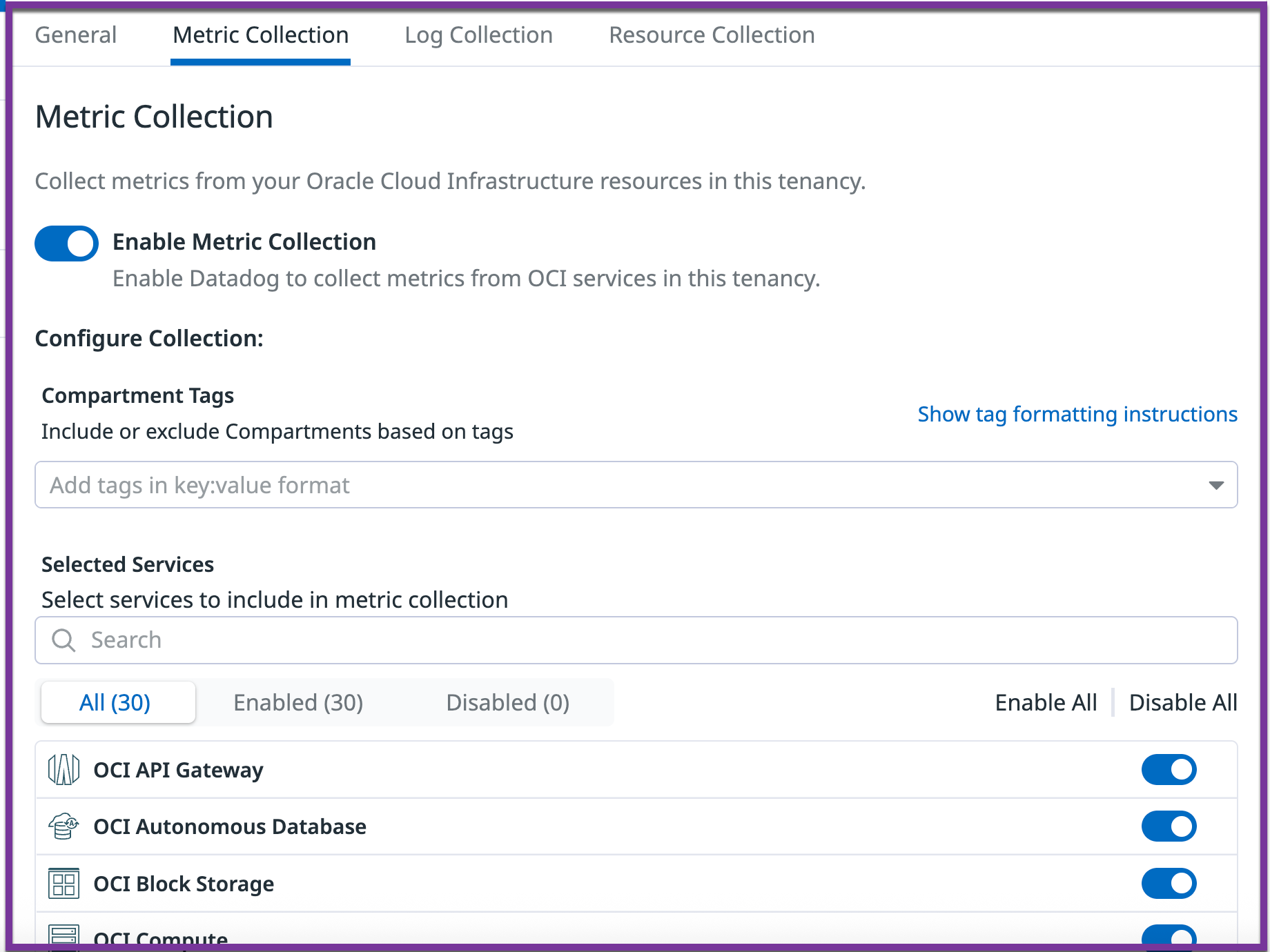
Datadog における OCI テナンシの設定タブ

セットアップが完了すると、Datadog OCI インテグレーション タイル の左側で、そのテナンシ用の設定タブが利用できるようになります。以下のセクションで説明するように、テナンシ全体のデータ収集設定を適用してください。

Add regions

On the General tab, select the regions for data collection from the Regions checkbox list. Region selections apply to the entire tenancy, for both metrics and logs.

Note: If you used the QuickStart setup method, and afterward subscribed to a new OCI region, reapply the initial setup stack in ORM. The new region then becomes available in the Datadog OCI tile.

Metric and log collection

Use the Metric collection and Log collection tabs to configure which metrics and logs are sent to Datadog:

  • Enable or disable collection of metrics or logs for the entire tenancy
  • Include or exclude specific compartments based on key:value format compartment tags. For example:
    • datadog:monitored,env:prod* includes compartments if either of these tags is present
    • !env:staging,!testing では、両方 のタグが存在する場合にのみコンパートメントが除外されます。
    • datadog:monitored,!region:us-phoenix-1 includes compartments that both have the tag datadog:monitored and do not have the tag region:us-phoenix-1
  • Enable or disable collection for specific OCI services

:

  • After modifying tags in OCI, it may take up to 15 minutes for the changes to appear in Datadog
  • In OCI, tags are not inherited by child compartments; each compartment must be tagged individually

Resource Collection

Datadog OCI インテグレーション タイルResource Collection タブで、Enable Resource Collection トグルをクリックします。リソースは Datadog Resource Catalog で確認できます。

OCI メトリクスを Datadog に転送するには

For a visual representation of this architecture, see the Architecture section.

テナンシー情報を入力

  • Your OCI user account needs the Cloud Administrator role to complete these steps
  • Tenancy OCID
  • Home Region

監視対象のテナンシの OCID と Home Region を、Datadog OCI インテグレーション タイル に入力します。

Create OCI policy stack

Ensure that the home region of the tenancy is selected in the top right of the screen.

This Oracle Resource Manager (ORM) policy stack should only be deployed once per tenancy.

  1. Click the Create Policy Stack button on the Datadog OCI integration tile.
  2. Oracle 利用規約に同意します。
  3. カスタム Terraform プロバイダーを使用するオプションは未選択のままにします。
  4. Use the default name and compartment for the stack, or optionally provide your own descriptive name or compartment.
  5. Next をクリックします。
  6. Leave the tenancy field and current user field as-is.
  7. Next をクリックします。
  8. Create をクリックします。

Enter DatadogROAuthUser info

  • OCID of the DatadogROAuthUser
  • OCI API key and fingerprint value
  1. In the OCI console search bar, search for DatadogROAuthUser and click on the User resource that appears.
  2. Copy the user’s OCID value.
  3. その値を Datadog OCI インテグレーション タイルUser OCID フィールドに貼り付けます。
  4. Returning to the OCI console, generate an API key with these steps:
    a. In the bottom left corner of the screen, under Resources, click API keys.
    b. Click Add API key.
    c. Click Download private key.
    d. Click Add.
    e. A Configuration file preview popup appears, but no action is needed; close the popup.
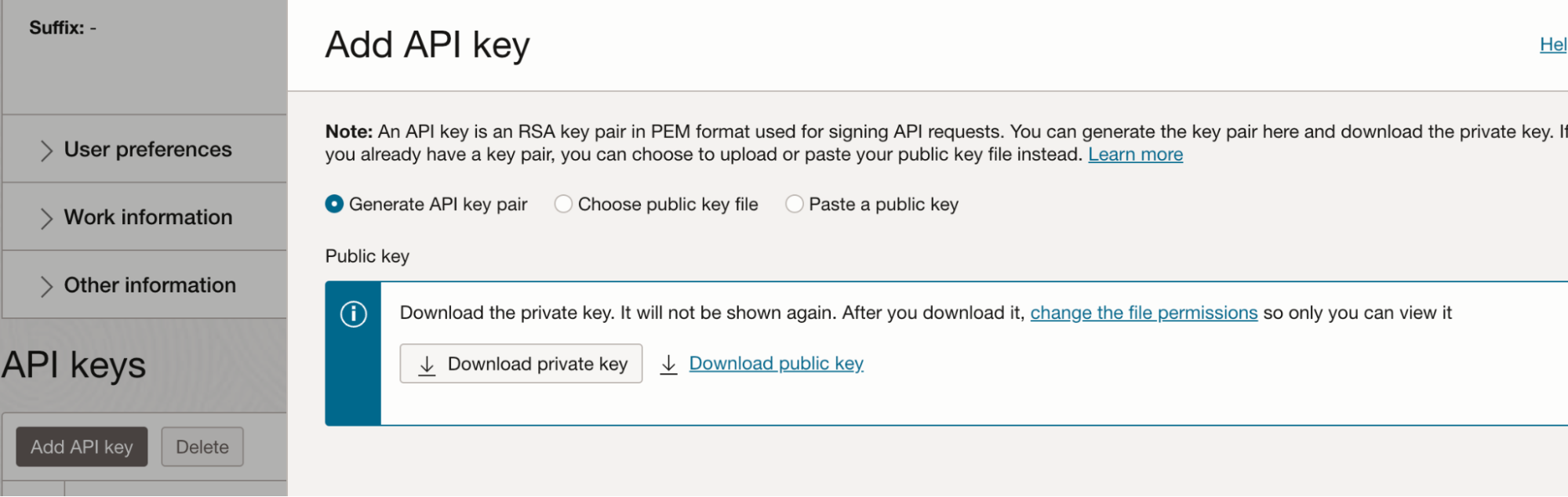
OCI コンソールの Add API Key ページ

  1. フィンガープリント値をコピーし、Datadog OCI インテグレーション タイルFingerprint フィールドに貼り付けます。
  2. Copy the private key value with these steps: a. Open the downloaded private key .pem file in a text editor, or use a terminal command such as cat to display the file’s contents. b. -----BEGIN PRIVATE KEY----------END PRIVATE KEY----- を含む全内容をコピーします。
  3. プライベートキーの値を Datadog OCI インテグレーションタイルの Private Key フィールドに貼り付けてください。

Create OCI metric forwarding stack

: Docker registry へのログイン設定が正しいことを確認するには、Oracle Cloud Infrastructure Registry にログインする を参照してください。

The metric forwarding stack must be deployed for each combination of tenancy and region to be monitored. For the simplest setup, Datadog recommends creating all the necessary OCI resources with the Oracle Resource Manager (ORM) stack provided below. Alternatively, you can use your existing OCI networking infrastructure.

All resources created by Datadog’s ORM stack are deployed to the compartment specified, and for the region currently selected in the top right of the screen.

  1. Click the Create Metric Stack button on the Datadog OCI integration tile.
  2. Oracle 利用規約に同意します。
  3. Leave the Custom providers option unchecked.
  4. スタックに名前を付け、それをデプロイするコンパートメントを選択します。
  5. Next をクリックします。
  6. Datadog API Key フィールドに、Datadog API Key の値を入力します。
  7. In the Network options section, leave Create VCN checked.

If using an existing Virtual Cloud Network (VCN), the subnet’s OCID must be provided to the stack. Make sure that the VCN:

  • Is allowed to make HTTP egress calls through NAT gateway
  • Is able to pull images from OCI container registry using service gateway
  • Has the route table rules to allow NAT gateway and service gateway
  • Has the security rules to send HTTP requests
  1. In the Network options section, uncheck the Create VCN option and enter your VCN information:
    a. In the vcnCompartment field, select your compartment.
    b. In the existingVcn section, select your existing VCN.
    c. Function Subnet OCID セクションで、使用するサブネットの OCID を入力します。
  1. In the Metrics settings section, optionally remove any metric namespaces from collection.
  2. In the Metrics compartments section, enter a comma-separated list of compartment OCIDs to monitor. Any metric namespace filters selected in the previous step are applied to each compartment.
  3. In the Function settings section, select GENERIC_ARM. Select GENERIC_X86 if deploying in a Japan region.
  4. Next をクリックします。
  5. Create をクリックします。
  6. Datadog OCI インテグレーション タイル に戻り、Create Configuration をクリックします。

:

  • By default, only the root compartment is selected, and all of the metric namespaces from Step 8 which are present in the compartment are enabled (up to 50 namespaces are supported per connector hub). If you choose to monitor additional compartments, the namespaces added to them are an intersection of namespaces selected and the namespaces present in the compartment.
  • Resource Manager スタックの Terraform state file にアクセスできるユーザーは、適切に管理する必要があります。詳しくは、Securing Resource Manager ページの Terraform State Files セクション を参照してください。

ログ収集

Use one of the methods below to send your OCI logs to Datadog:

  1. メトリクスとログの両方を Datadog に転送するために必要な基盤を作成するには、セットアップ セクション の手順に従ってください。
  2. Datadog OCI インテグレーション タイルLog Collection タブで、Enable Log Collection トグルをクリックします。
  1. OCI ログを構成します。
  2. OCI 関数を作成します。
  3. OCI サービスコネクタを設定します。

以下の手順では、OCI ポータルを使用してインテグレーションを設定します。

OCI ロギング

  1. OCI ポータルで、Logging -> Log Groups に移動します。
  2. コンパートメントを選択し、Create Log Group をクリックします。サイドパネルが開きます。
  3. 名前には data_log_group を入力し、オプションで説明とタグを入力します。
  4. Create をクリックして、新しいロググループを設定します。
  5. Resources の下にある Logs をクリックします。
  6. 必要に応じて、Create custom log または Enable service log をクリックします。
  7. Enable Log をクリックして、新しい OCI ログを作成します。

OCI Logs の詳細については、リソースの Logging を有効にする を参照してください。

OCI 関数

  1. OCI ポータルで、Functions に移動します。
  2. 既存のアプリケーションを選択するか、Create Application をクリックします。
  3. アプリケーション内に新しい OCI 関数を作成します。詳しくは、Oracle による関数の概要 を参照してください。
  4. It is recommended to create a boilerplate Python function first and replace the automatically-generated files with Datadog’s source code:

OCI サービスコネクタハブ

  1. OCI ポータルで、Logging -> Service Connectors に移動します。
  2. Create Service Connector をクリックして、Create Service Connector ページに移動します。
  3. ロギングとして Source を選択し、関数として Target を選択します。
  4. Configure Source Connection で、Compartment nameLog GroupLog を選択します。(最初のステップで作成された Log GroupLog)
  5. Audit Logs も送信したい場合は、+Another Log をクリックし、同じ Compartment を選択したうえで、Log Group に “_Audit” を指定します。
  6. Configure target で、CompartmentFunction applicationFunction を選択します。(前のステップで作成された Function ApplicationFunction)
  7. ポリシーを作成するように求められたら、プロンプトから Create をクリックします。
  8. 一番下の Create をクリックして、サービスコネクタの作成を完了します。

OCI Object Storage の詳細については、Oracle の Service Connector に関するブログ記事 を参照してください。

  1. OCI ログを構成します。
  2. OCI オブジェクトストアを作成し、OCI ログの読み取り/書き込みアクセスを有効にします。
  3. OCI 関数を作成します。
  4. OCI イベントを設定します。

以下の手順では、OCI ポータルを使用してインテグレーションを設定します。

OCI ロギング

  1. OCI ポータルで、Solutions and Platform -> Logging -> Logs に移動します。
  2. Create Custom Log をクリックして、Create Custom Log ページに移動します。
  3. 新しい OCI ログに名前を付けます。
  4. CompartmentLog Group を選択します。この選択は、インストール全体で一貫しています。
  5. Create Custom Log をクリックして、Create Agent Config ページに移動します。
  6. Create new configuration をクリックします。
  7. 新しいコンフィギュレーションに名前を付けます。コンパートメントは事前に選択されています。
  8. グループタイプを Dynamic Group に設定し、グループを既存のグループの 1 つに設定します。
  9. 入力タイプを Log Path に設定し、希望の入力名を入力して、ファイルパスに “/” を使用します。
  10. Create Custom Log をクリックすると、OCI ログが作成され、ログページで利用できるようになります。

OCI Logs の詳細については、リソースの Logging を有効にする を参照してください。

OCI オブジェクトストレージ

  1. OCI ポータルで、Core Infrastructure -> Object Storage -> Object Storage に移動します。
  2. Create Bucket をクリックして、Create Bucket フォームに移動します。
  3. ストレージ階層に Standard を選択し、Emit Object Events をチェックします。
  4. 好みに応じてフォームの残りの部分に記入します。
  5. Create Bucket をクリックすると、バケットが作成され、バケットリストで利用できるようになります。
  6. アクティブなバケットリストから新しいバケットを選択し、リソースの下の Logs をクリックします。
  7. Toggle read to enabled, which directs you to an Enable Log side menu.
  8. CompartmentLog Group を選択します (OCI ログと同じ選択を使用します)。
  9. Log Name の名前を入力し、希望するログ保持を選択します。

OCI Object Storage の詳細については、Object Storage にデータを格納する を参照してください。

OCI 関数

  1. OCI ポータルで、Solutions and Platform -> Developer Services -> Functions に移動します。
  2. 既存のアプリケーションを選択するか、Create Application をクリックします。
  3. アプリケーション内に新しい OCI 関数を作成します。詳しくは、Oracle による関数の概要 を参照してください。
  4. It is recommended to create a boilerplate Python function first and replace the automatically-generated files with Datadog’s source code:

OCI イベント

  1. OCI ポータルで、Solutions and Platform -> Application Integration -> Event Service に移動します。
  2. Create Rule をクリックして、Create Rule ページに移動します。
  3. イベントルールに名前と説明を付けます。
  4. 条件を Event Type*、サービス名を Object Storage、イベントタイプを Object - Create として設定します。
  5. アクションタイプを Functions として設定します。
  6. 関数コンパートメントが、OCI ログ、OCI バケット、および OCI 関数に対して行った選択と同じであることを確認します。
  7. Select your function application and function (according to the previous installation step).
  8. Create Rule をクリックすると、ルールが作成され、ルールリストで利用できるようになります。

OCI Object Storage の詳細については、Events の利用開始 を参照してください。

アーキテクチャ

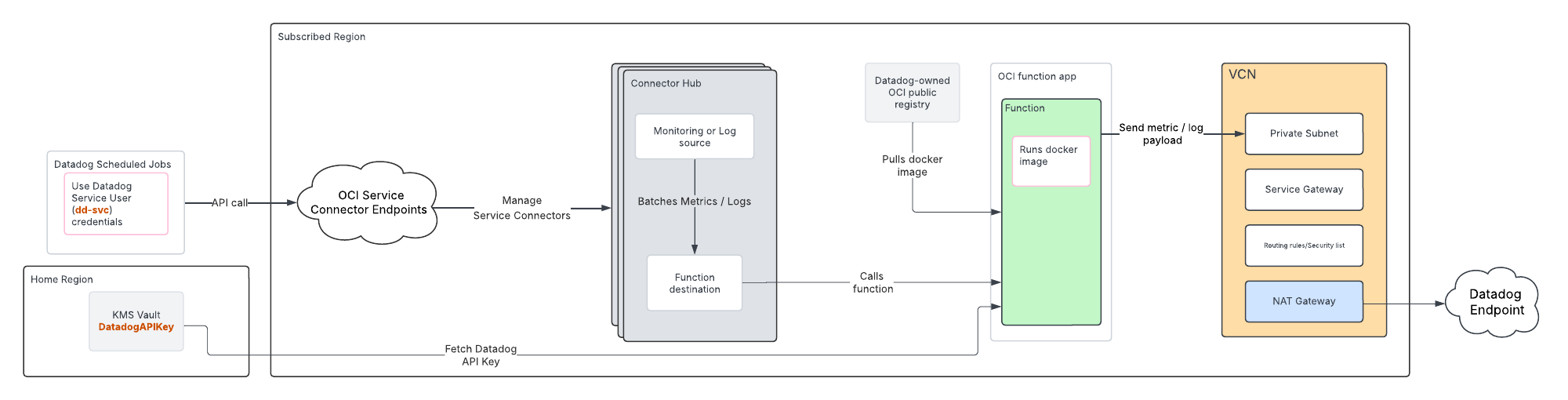
Metric and log forwarding resources

このセットアップ オプションで使用する OCI のメトリクスおよびログ転送リソースと、データ フローを示した図

監視対象の各リージョンについて、このセットアップ オプションでは、そのリージョン内に Datadog へメトリクスとログを転送するための次の基盤が作成されます:

  • Function Application (dd-function-app)
  • 2 つの関数:
    • Metrics Forwarder (dd-metrics-forwarder)
    • Logs Forwarder (dd-logs-forwarder)
  • VCN (dd-vcn) with secure networking infrastructure:
    • Private subnet (dd-vcn-private-subnet)
    • NAT gateway (dd-vcn-natgateway) for external access to the internet
    • Service gateway (dd-vcn-servicegateway) for internal access to OCI services
  • Key Management Service (KMS) vault (datadog-vault) to store the Datadog API key
  • Dedicated Datadog compartment (Datadog)

All resources are tagged with ownedby = "datadog".

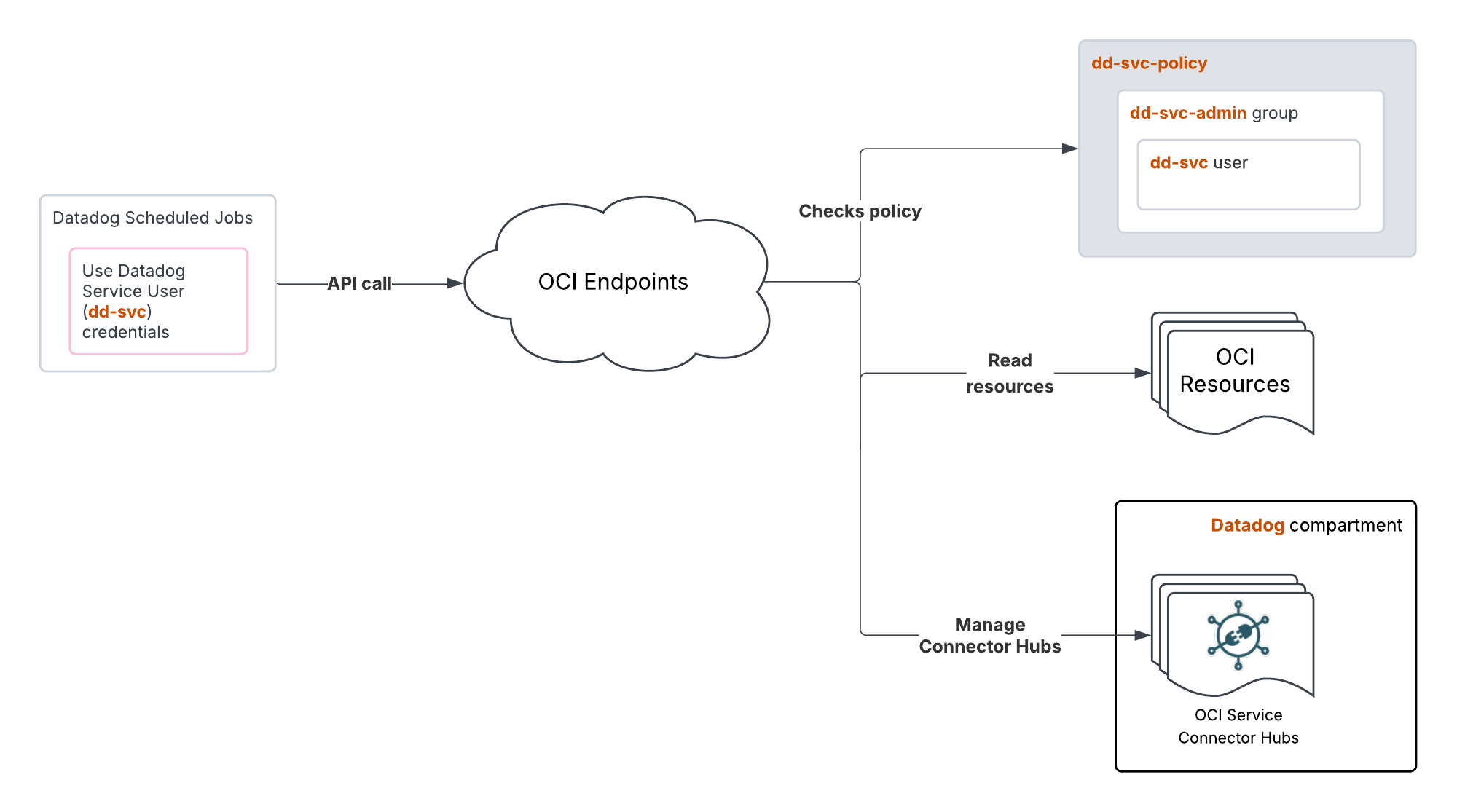
IAM resources

このセットアップ オプションで使用する OCI IAM リソースと、データ フローを示した図

This setup option creates the following IAM resources to enable data forwarding to Datadog:

  • Service user (dd-svc)
  • Group (dd-svc-admin) that the service user belongs to
  • RSA key pair for API authentication
  • OCI API key for the service user
  • Dynamic Group (dd-dynamic-group-connectorhubs) that includes all service connectors in the Datadog compartment
  • Dynamic Group (dd-dynamic-group-function) that includes all functions in the Datadog compartment
  • Policy (dd-svc-policy) to give the service user read access to the tenancy resources, as well as access to manage OCI Service Connector Hubs and OCI Functions in the compartment created and managed by Datadog
- dd-svc-admin に tenancy 内の all-resources の読み取りを許可
- dd-svc-admin に Datadog コンパートメント内の serviceconnectors の管理を許可
- dd-svc-admin に Datadog コンパートメント内の functions-family の管理を許可 (権限を限定):
     * FN_FUNCTION_UPDATE
     * FN_FUNCTION_LIST
     * FN_APP_LIST
- dd-svc-admin が tenancy usage-report 内の objects を読み取れるように Endorse
  • Policy dd-dynamic-group-policy to enable the service connectors to read data (logs and metrics) and interact with functions. This policy also allows the functions to read secrets in the Datadog compartment (the Datadog API and application keys stored in the KMS vault)
   - Allow dd-dynamic-group-connectorhubs to read log-content in tenancy
   - Allow dd-dynamic-group-connectorhubs to read metrics in tenancy
   - Allow dd-dynamic-group-connectorhubs to use fn-function in Datadog compartment
   - Allow dd-dynamic-group-connectorhubs to use fn-invocation in Datadog compartment
   - Allow dd-dynamic-group-functions to read secret-bundles in Datadog compartment

Metric forwarding resources

このセットアップ オプションで使用する OCI リソースと、データ フローを示した図

このセットアップ オプションでは、OCI メトリクスを Datadog に転送するために、OCI の Connector Hub関数アプリケーション、およびセキュアなネットワーク基盤を作成します。これらのリソース向け ORM スタックでは、テナンシ内の対象リージョンに関数用のコンテナ リポジトリが作成され、その関数で使用する Docker イメージがそこにプッシュされます。

IAM resources

インテグレーション認証に使用される OCI リソースとワークフローを示した図

This setup option creates:

  • Dynamic group with resource.type = 'serviceconnectors', to enable access to the connector hub
  • User named DatadogROAuthUser, which Datadog uses to read tenancy resources
  • Group to which the created user is added for policy access
  • User named DatadogAuthWriteUser, which is used to push Docker images for the function
  • Write access group that the DatadogAuthWriteUser is added to, for pushing images through policy access
  • Policy in the root compartment to allow connector hubs to read metrics and invoke functions. This policy also gives the created user group read access to both the tenancy resources and write access group, to push images
Allow dynamic-group Default/<GROUP_NAME> to read metrics in tenancy
Allow dynamic-group Default/<GROUP_NAME> to use fn-function in tenancy
Allow dynamic-group Default/<GROUP_NAME> to use fn-invocation in tenancy
Allow group Default/<USER_GROUP_NAME> to read all-resources in tenancy
Allow group Default/<WRITE_USER_GROUP_NAME> to manage repos in tenancy where ANY {request.permission = 'REPOSITORY_READ', request.permission = 'REPOSITORY_UPDATE', request.permission = 'REPOSITORY_CREATE'}

収集されるデータ

メトリクス

メトリクスの詳細一覧については、メトリクス ネームスペース セクション で該当する OCI サービスを選択してください。

サービス チェック

OCI インテグレーションには、サービスのチェック機能は含まれません。

イベント

OCI インテグレーションには、イベントは含まれません。

トラブルシューティング

お問合せは、Datadog サポート まで。

その他の参考資料

役立つドキュメント、リンク、記事:

Further Reading