This product is not supported for your selected
Datadog site. (
).
このページは日本語には対応しておりません。随時翻訳に取り組んでいます。
翻訳に関してご質問やご意見ございましたら、
お気軽にご連絡ください。
Overview
Linear is an issue tracking and project management tool. It helps teams plan, track, and ship work. The Datadog integration for Linear enables you to create issues from monitors.
Setup
Installation
- Navigate to the Datadog Linear integration tile and click Add Account.
- On the Linear authorization page, click Authorize.
Issue templates define how issues are created in Linear from Datadog alert events.
To create an issue template:
- In Datadog, click New Issue Template in the Create Linear issues from Datadog section.
- Enter a name for your issue template. This name, prefixed with
linear-, becomes the handle you can use in your monitor to send notifications to (for example, linear-my-issue-template-name). - Select a Linear account.
- Select the team.
Issue template fields define the data that is included when creating issues in Linear. For example, you can configure your template to create issues with a default assignee or specific labels.
Validation
- Create an issue template.
- Configure a monitor to with the Linear handle (for example,
@linear-my-issue-template-name). - Send a test notification from the monitor and an issue should be created in Linear.
Data Collected
Metrics
Linear does not include any metrics.
Service Checks
Linear does not include any service checks.
Events
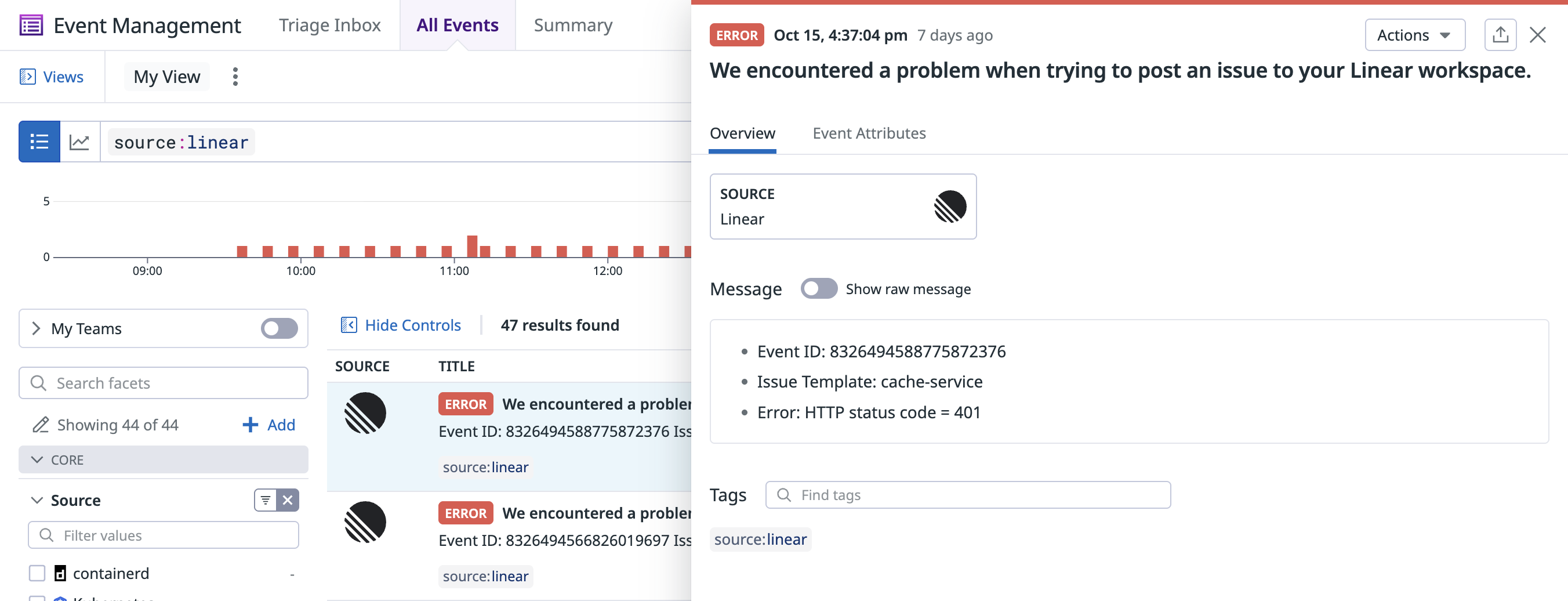
All created Linear issues appear as events within Datadog.
Troubleshooting
If you encounter errors when loading your issue templates, or receive 401 status codes from Linear in your event stream, reconnect your account following the steps below.
Do not delete the account in the Linear integration tile.
- Navigate to your Linear workspace and go to Settings.
- If the Datadog app is installed in your workspace, revoke access in Applications.
- Go back to the Datadog Linear integration tile and reauthorize the account by clicking Add Account.
The existing account in the integration tile should then be updated, and this can be verified by creating a new issue template for the account.
Need help? Contact Datadog support.


