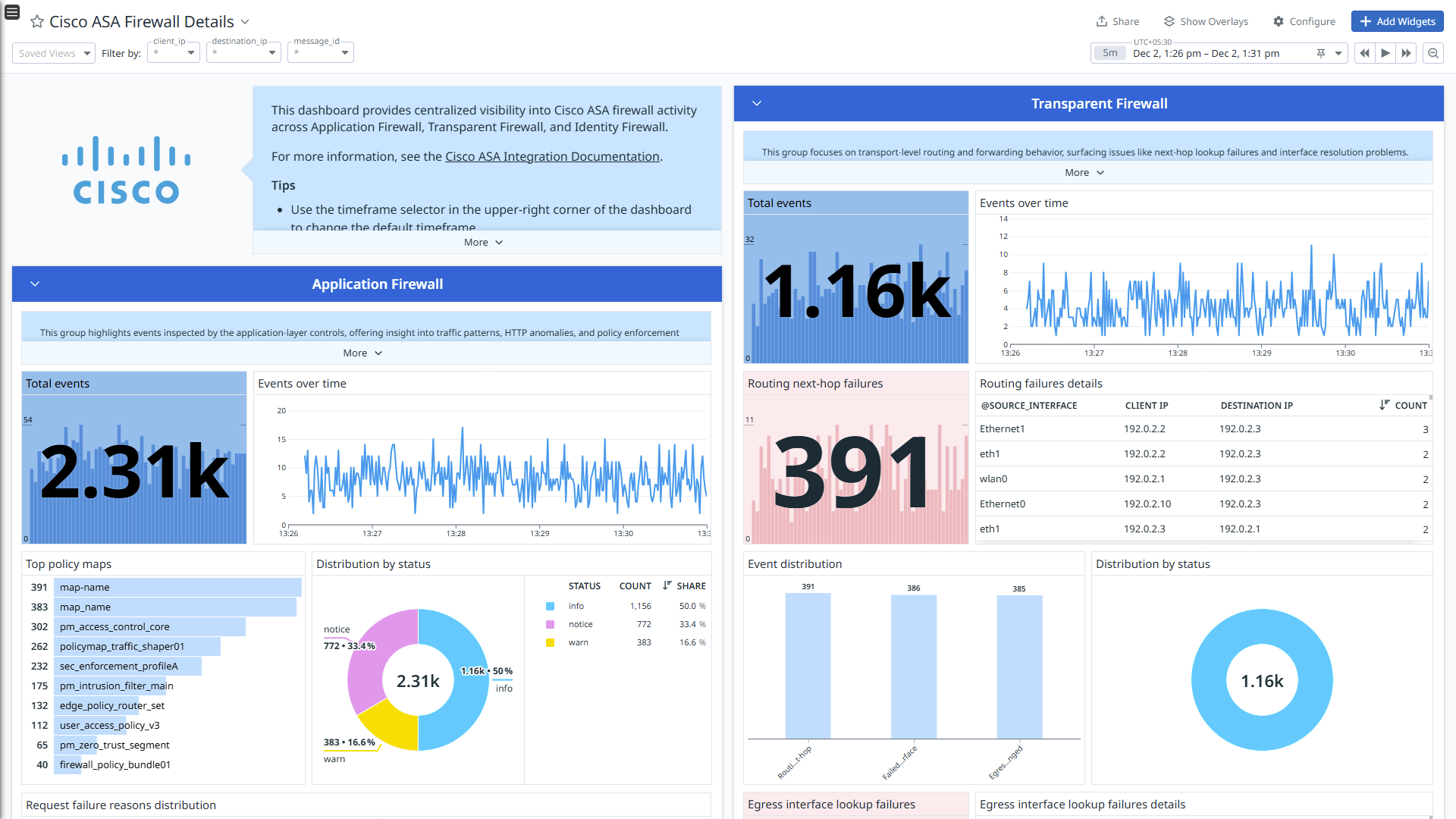
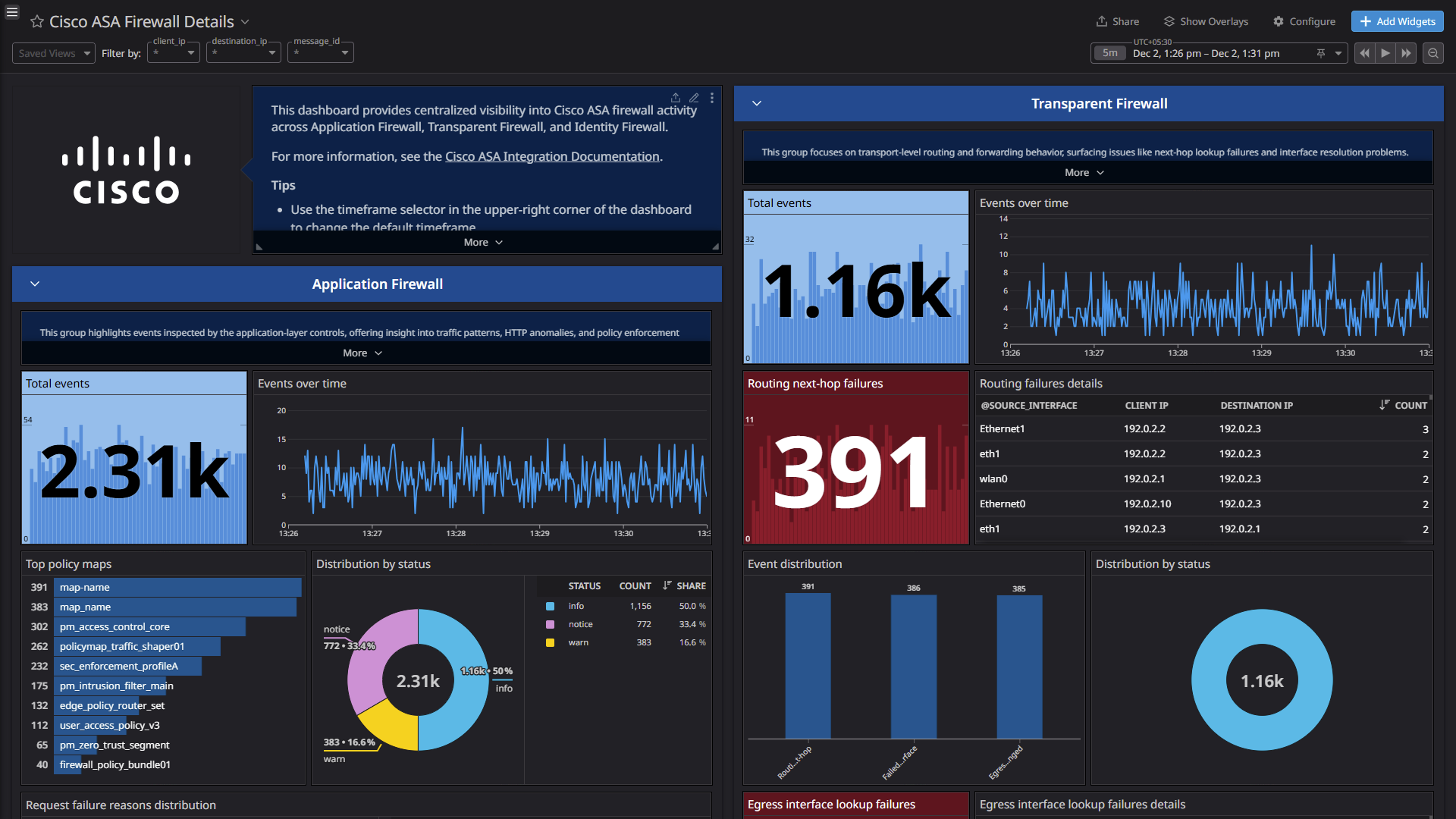
Cisco ASA Firewall Details
Cisco ASA Firewall Details
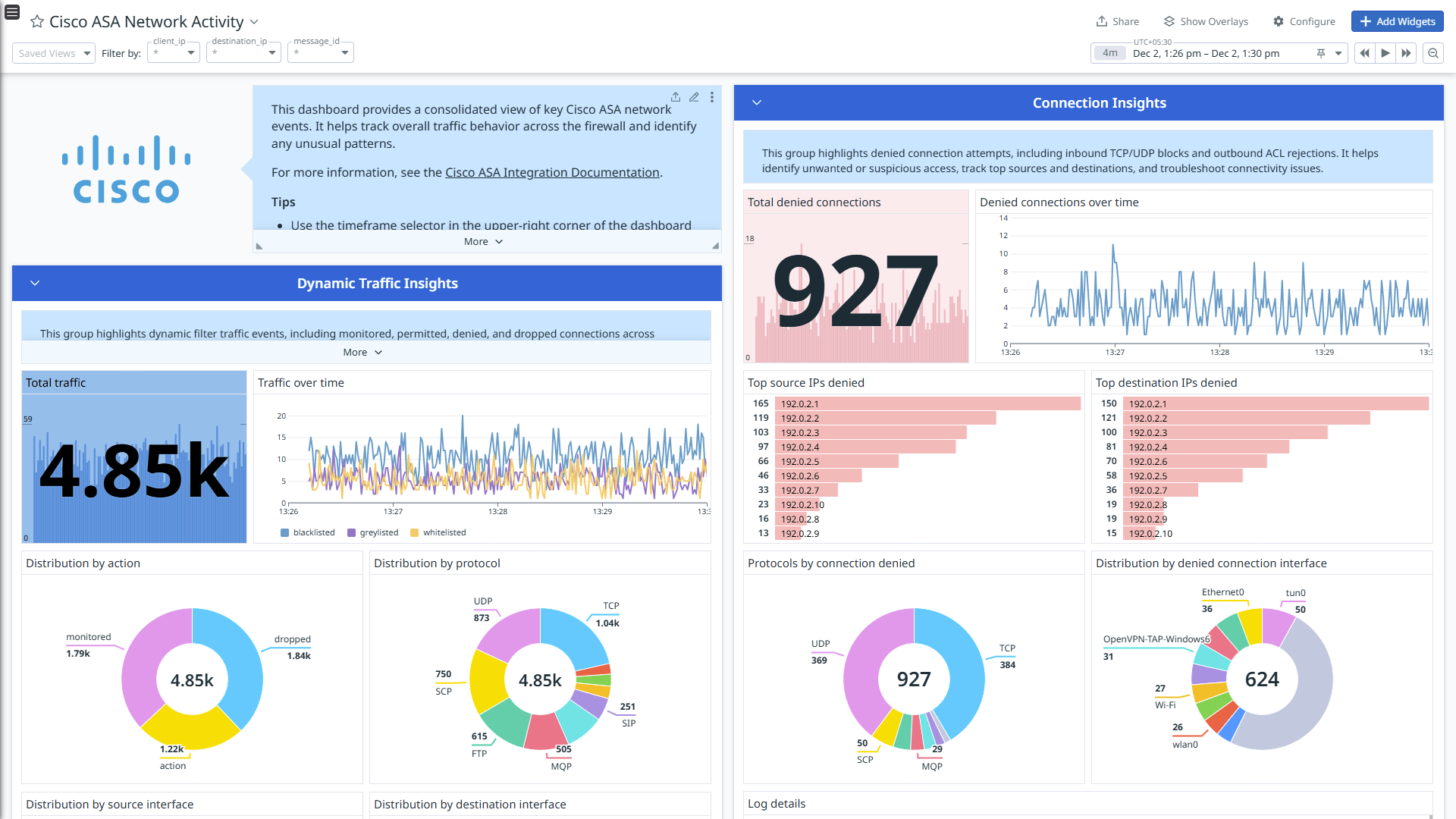
Cisco ASA Network Activity
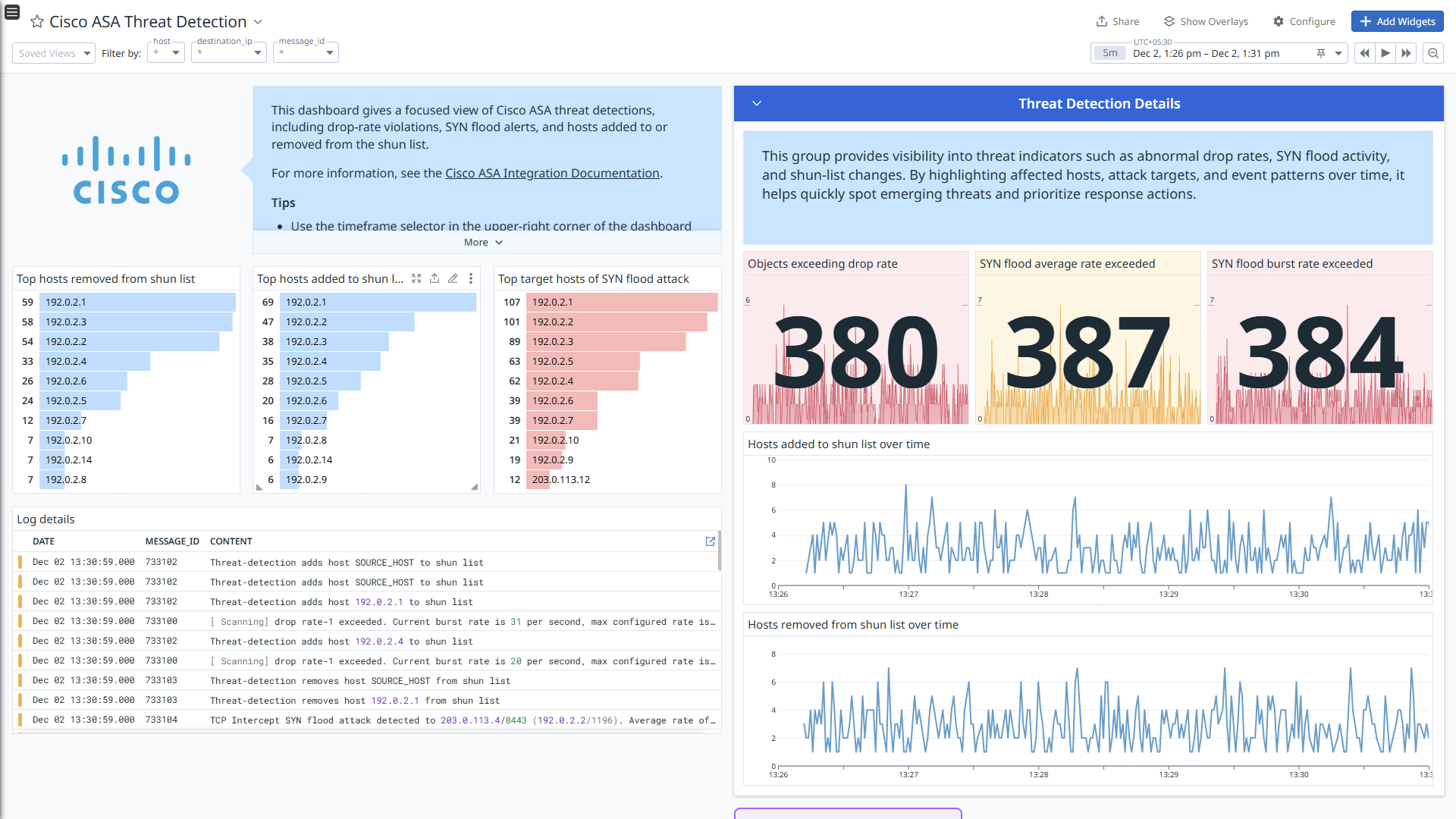
Cisco ASA Threat Detection
Overview
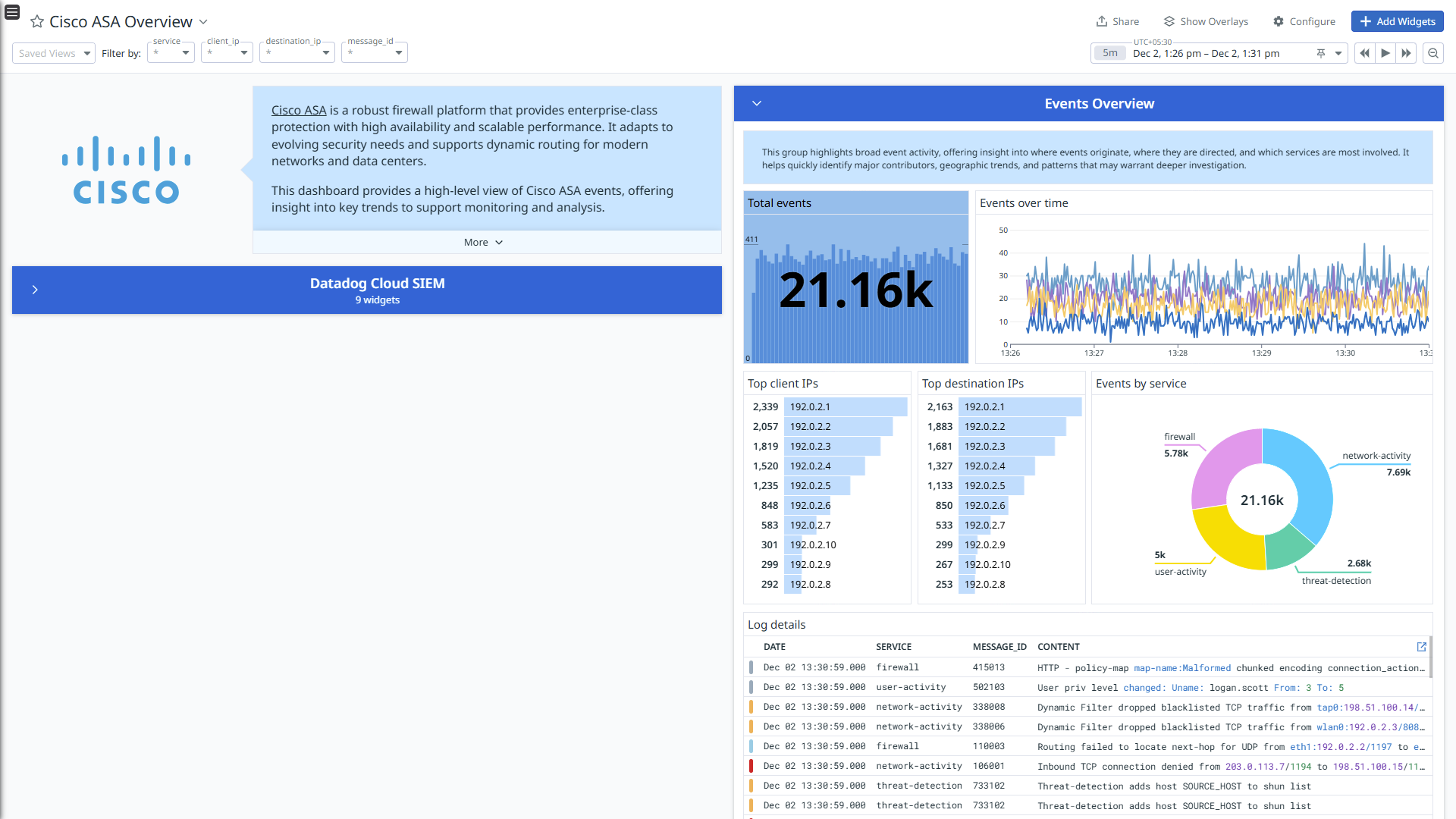
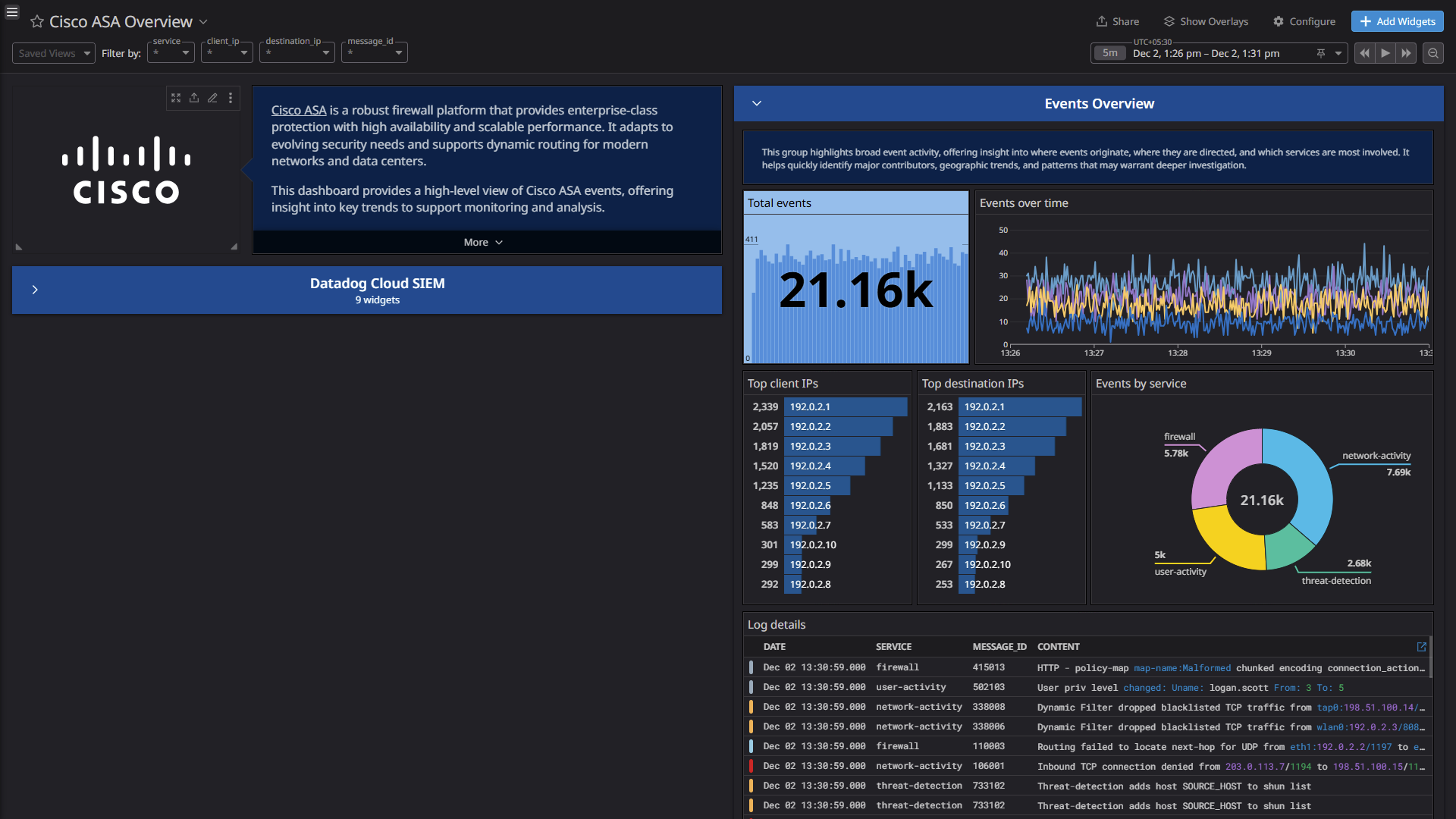
Cisco ASA is a robust firewall platform that provides enterprise-class protection with high availability and scalable performance. It adapts to evolving security needs and supports dynamic routing for modern networks and data centers.
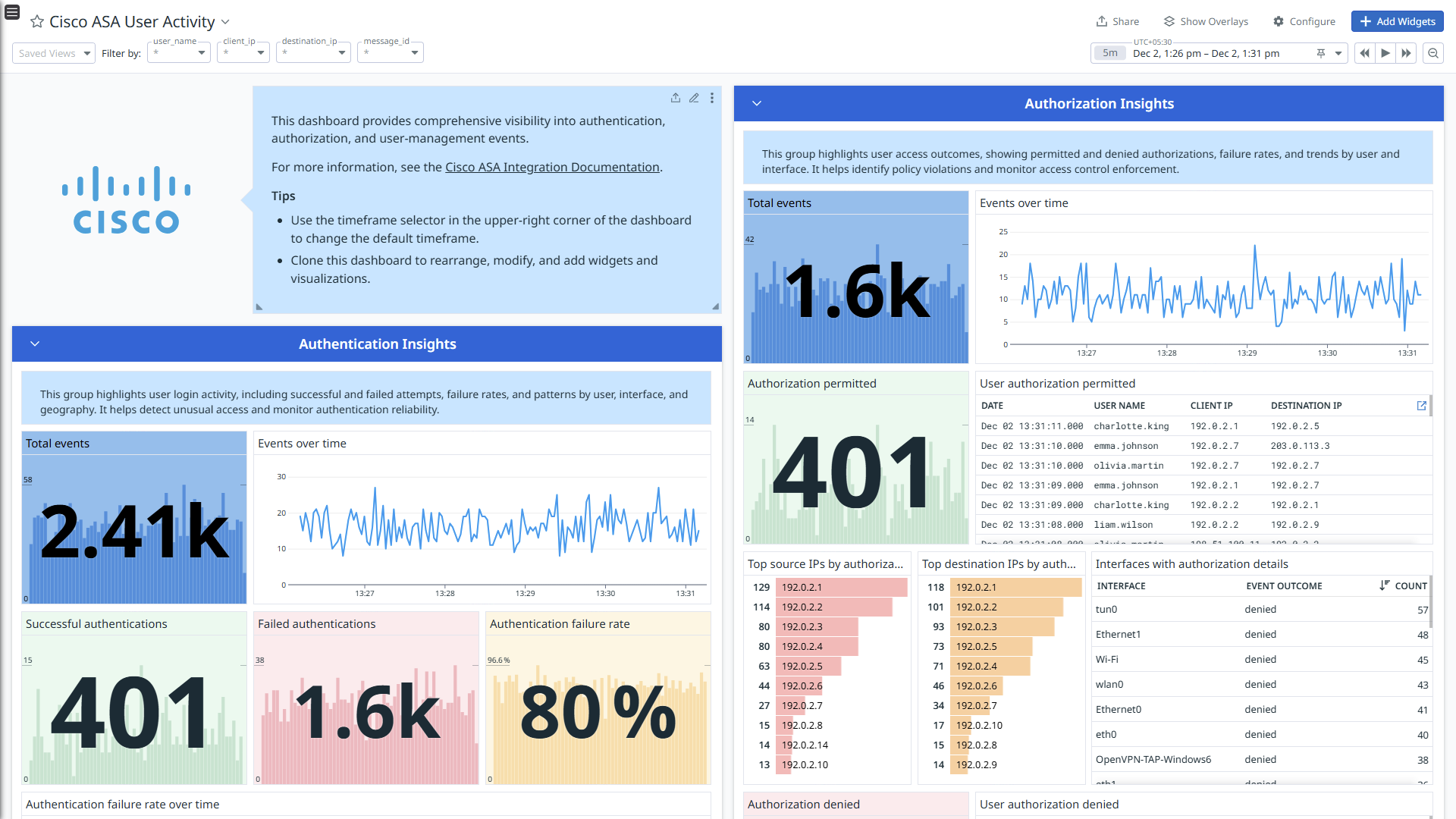
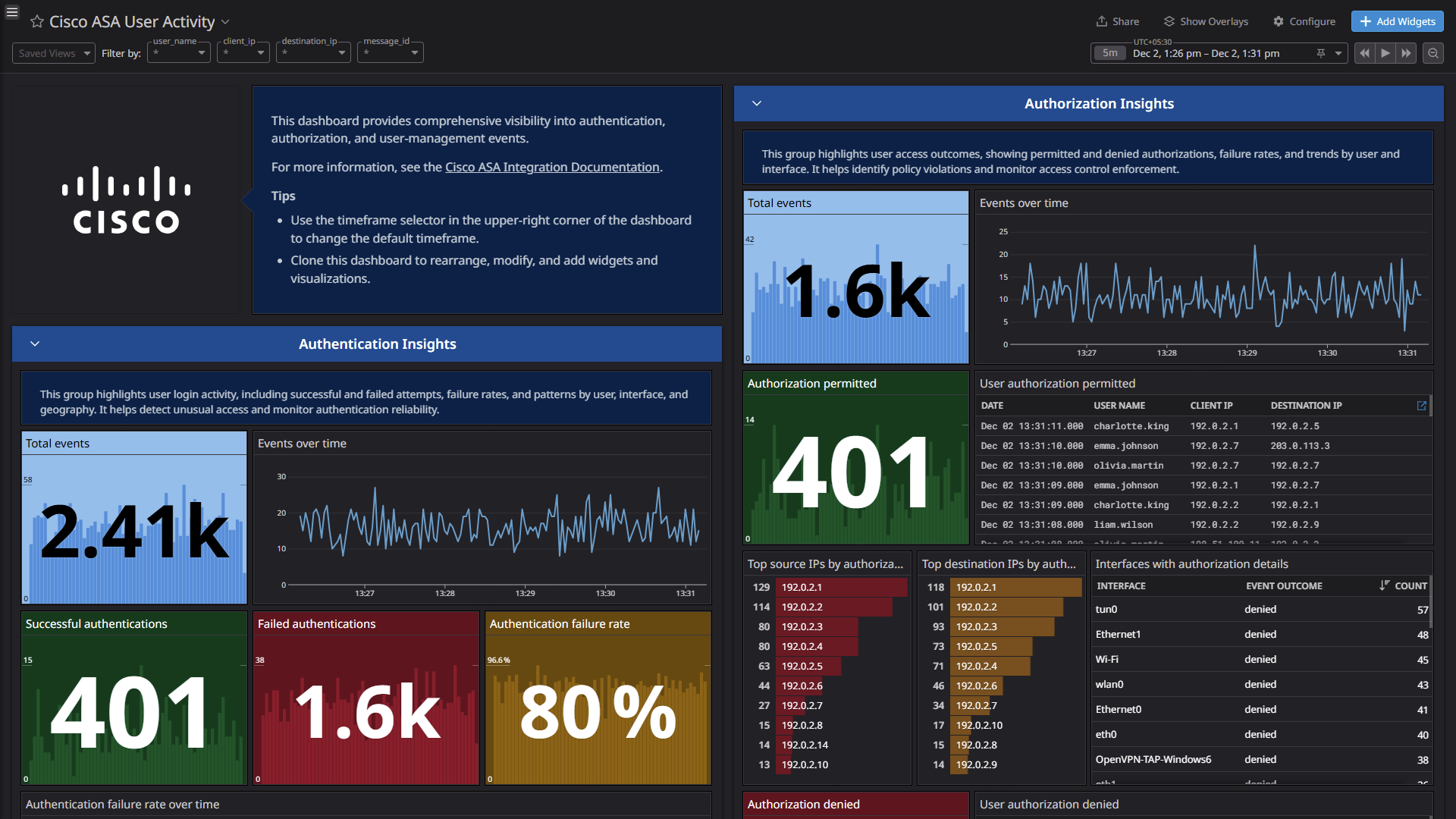
Integrate Cisco ASA with Datadog to gain insights into threat detection, user authentication, user authorization, user management, dynamic traffic insights, connection insights, ARP collision insights, application firewall, transparent firewall and identity firewall using pre-built dashboard visualizations. Datadog uses its built-in log pipelines to parse and enrich these logs, facilitating easy search and detailed insights. The integration can also be used for Cloud SIEM detection rules for enhanced monitoring and security.
Disclaimer: Your use of this integration, which may collect data that includes personal information, is subject to your agreements with Datadog. Cisco is not responsible for the privacy, security or integrity of any end-user information, including personal data, transmitted through your use of the integration.
Setup
Configuration
Enable log collection
Collecting logs is disabled by default in the Datadog Agent. Enable it in datadog.yaml:
Add this configuration block to your cisco_asa.d/conf.yaml file to start collecting your Cisco ASA logs.
logs:
 - type: tcp # or 'udp'
   port: <PORT>
   service: cisco-asa
   source: cisco-asa
See the sample cisco_asa.d/conf.yaml file for available configuration options.
Note: Do not change the source and service values, as these parameters are integral to the pipeline’s operation.
Restart the Agent.
Set syslog configuration from Cisco ASA CLI
Connect to the Cisco ASA CLI.
Enter privileged EXEC mode by running:
When prompted, enter the password.
Enable global configuration mode:
Enable logging:
Configure syslog log forwarding:
Replace the placeholders with actual values:
- interface_name: interface that the syslog server is associated with
- ip_address: IP address of the syslog server
- port: port where the syslog server is listening
For UDP:
logging host <interface_name> <ip_address> udp/<port>
For TCP:
logging host <interface_name> <ip_address> tcp/<port>
Set logging level to debugging:
Enable RFC 5424 timestamp format:
logging timestamp rfc5424
Note: The port value should be similar to the port provided in the Log Collection section.
Validation
Run the Agent’s status subcommand and look for cisco_asa under the Logs Agent section.
Data Collected
Logs
The Cisco ASA integration collects threat detection, user authentication, user authorization, user management, dynamic traffic insights, connection insights, ARP collision insights, application firewall, transparent firewall, and identity firewall logs.
Metrics
The Cisco ASA does not include any metrics.
Events
The Cisco ASA integration does not include any events.
Troubleshooting
Permission denied while port binding:
If you see a Permission denied error while port binding in the Agent logs, see the following instructions:
Binding to a port number under 1024 requires elevated permissions. Grant access to the port using the setcap command:
Grant access to the port using the setcap command:
sudo setcap CAP_NET_BIND_SERVICE=+ep /opt/datadog-agent/bin/agent/agent
Verify the setup is correct by running the getcap command:
sudo getcap /opt/datadog-agent/bin/agent/agent
With the expected output:
/opt/datadog-agent/bin/agent/agent = cap_net_bind_service+ep
Note: Re-run this setcap command every time you upgrade the Agent.
Restart the Agent.
Data is not being collected:
Make sure that traffic is bypassed from the configured port if the firewall is enabled.
Port already in use:
If you see the Port <PORT_NUMBER> Already in Use error, see the following instructions. The example below is for a PORT_NUMBER equal to 514:
On systems using syslog, if the Agent listens for logs on port 514, the following error can appear in the Agent logs: Can't start UDP forwarder on port 514: listen udp :514: bind: address already in use.
This error occurs because by default, Syslog listens on port 514. To resolve this error, take one of the following steps:
- Disable syslog, or
- Configure the Agent to listen on a different, available port.
Need help? Contact Datadog support.