BeyondTrust Password Safe
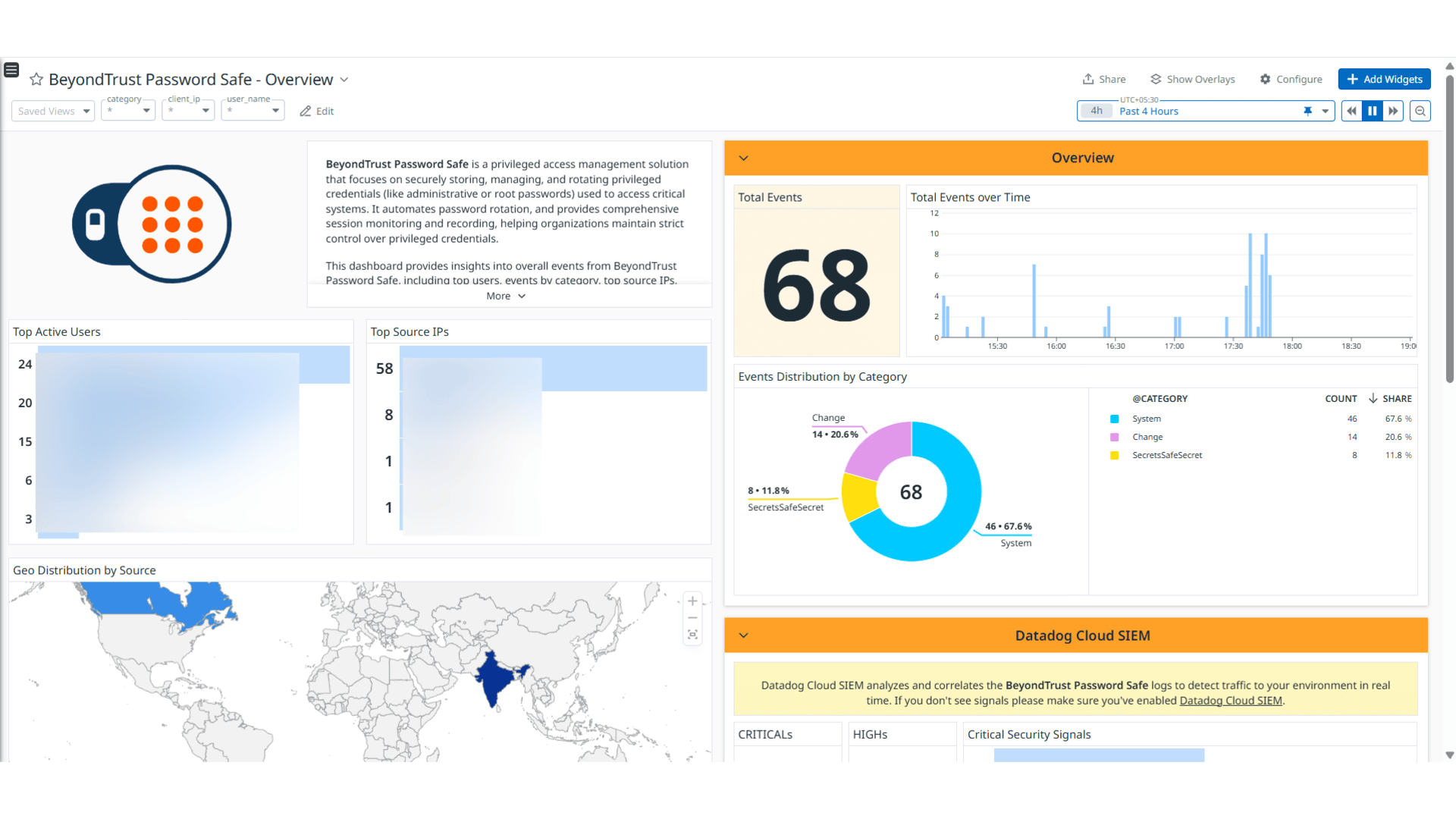
BeyondTrust Password Safe - Overview
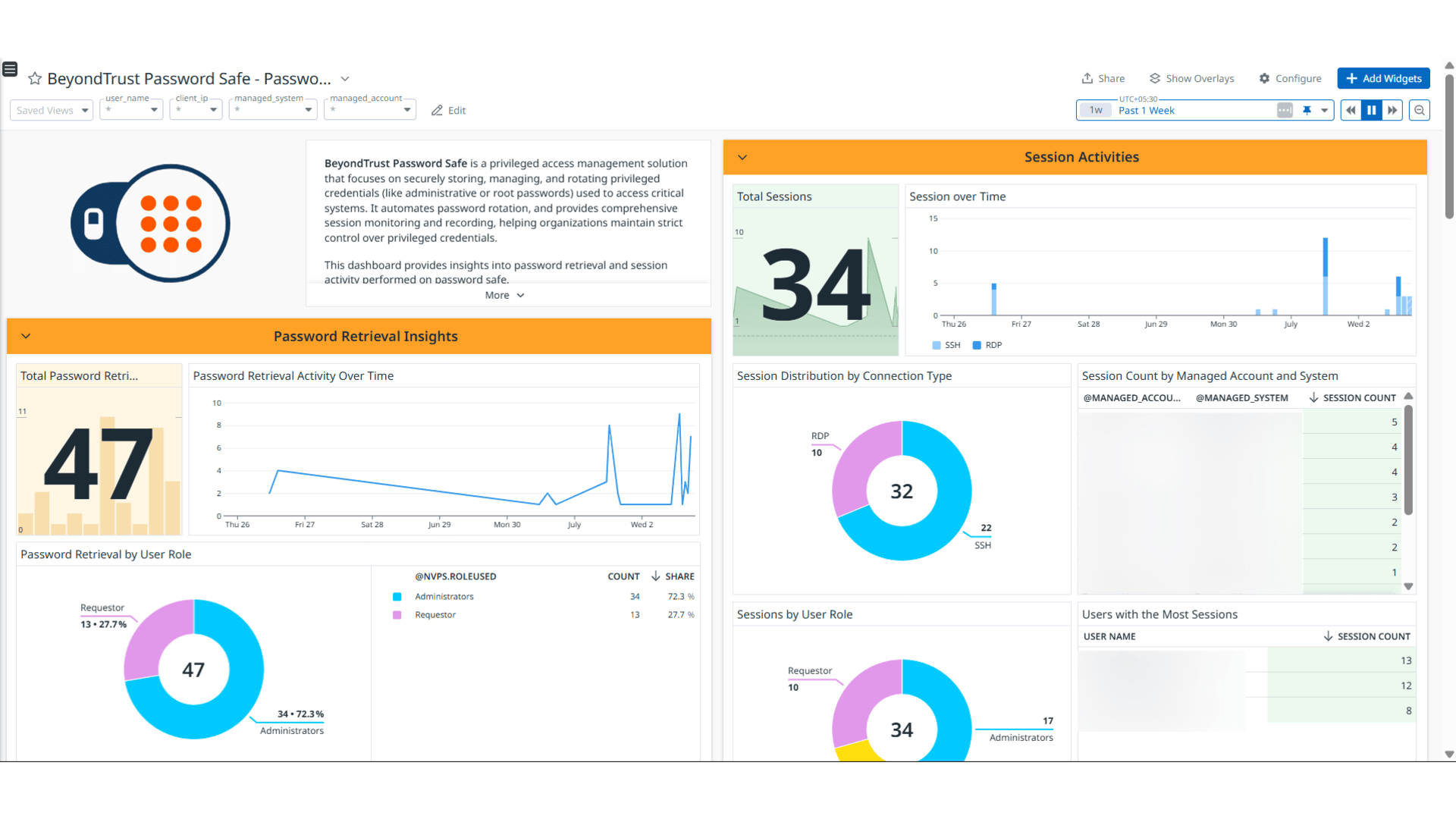
BeyondTrust Password Safe - Password and Session Insights
BeyondTrust Password Safe - Management and Secret Safe Insights
BeyondTrust Password Safe - Audit Insights
Overview
BeyondTrust Password Safe is a privileged access management solution designed to securely store, manage, and rotate privileged credentials (like administrative or root passwords) used to access critical systems. It automates password rotation and provides comprehensive session monitoring and recording to help organizations maintain strict control over privileged credentials.
This integration parses and ingest the following types of logs:
- Password and Session Activities: Captures events related to password retrievals, password rotations, session requests, approvals, and denials.
- Managed Systems and Managed Accounts: Logs information about the addition, modification, or removal of managed systems and accounts.
- Secret Safe Activities: Tracks the creation, retrieval, and deletion of secrets stored in the secret safe.
- Audit Logs: Tracks activities performed by platform users.
Visualize detailed insights into these logs through out-of-the-box dashboards. Cloud SIEM also provides detection rules to help you monitor and respond to potential security threats effectively.
Minimum Agent version: 7.70.0
Setup
Log Collection Overview
Note: To collect all the log types, configure both log collection methods.
The following table shows the log collection methods, the logs collected, and the dashboards populated for each methods.
| Log Collection Method | Logs Collected | Dashboards Populated |
|---|
| Agent and Event Forwarder Configuration | Password and Session Activities
Managed Systems and Managed Accounts
Secret Safe Activities | BeyondTrust Password Safe - Overview
BeyondTrust Password Safe - Password and Session Insights
BeyondTrust Password Safe - Management and Secret Safe Insights |
| Audit API Configuration | Audit Logs | BeyondTrust Password Safe - Audit Insights |
Agent and Event Forwarder Configuration
Installation
To install the BeyondTrust Password Safe integration, run the following Agent installation command in your terminal, then complete the configuration steps. For more information, see the Integration Management documentation.
Note: This step is not necessary for Agent version >= 7.69.0.
sudo -u dd-agent -- datadog-agent integration install datadog-beyondtrust_password_safe==1.0.0
Log collection
Collecting logs is disabled by default in the Datadog Agent. Enable it in datadog.yaml:
Add this configuration block to your beyondtrust_password_safe.d/conf.yaml file to start collecting your logs.
See the sample beyondtrust_password_safe.d/conf.yaml for available configuration options.
logs:
  - type: tcp
    port: <PORT>
    source: beyondtrust-password-safe
    service: password-safe
Note:
PORT: Port should be similar to the port provided in Configure log forwarding from BeyondTrust Password Safe via Universal Event Forwarder section.- It is recommended not to change the service and source values, as these parameters are integral to the pipeline’s operation.
Restart the Agent.
- Log in to BeyondTrust Password Safe with an Administrator account.
- In BeyondTrust Password Safe, go to Configuration > General > Connectors.
- From the Connectors panel, click Create New Connector.
- Enter a name for the connector.
- Select Universal Event Forwarder from the list.
- Click Create Connector.
- Leave Active (yes) enabled.
- Select TCP in the Available Output Pipelines dropdown.
- Enter the IP address where your Datadog Agent is running in the Host Name field.
- Enter the Port on which the Datadog Agent is listening.
- Select JSON in Available Formatters dropdown.
- Select Local0 in Facility dropdown.
- Expand Event Filters, and then enable BeyondInsight Application Audit and Password Safe options.
- Click Create Connector.
Validation
Run the Agent’s status subcommand and look for beyondtrust_password_safe under the Checks section.
Audit API Configuration
Retrieve Datadog CIDR Range
- Use an API platform such as Postman, or curl to make a GET request to the Datadog API endpoint.
- Once you receive the response, locate the webhooks section in the JSON. It will look something like this:
   "webhooks": {
      "prefixes_ipv4": [
         "0.0.0.0/32",
         ...
      ],
      "prefixes_ipv6": []
      }
- From the prefixes_ipv4 list under the Webhooks section, copy each CIDR entry.
- Log in to the BeyondTrust Password Safe using Administrator account.
- Go to Configuration > General > API Registrations.
- Click Create API Registration.
- Select API Access Policy from the dropdown list.
- Fill out the new API registration details, and set the Access Token Duration to 30 minutes.
- Click Add Authentication Rule for each of the CIDR entries retrieved in step “Retrieve Datadog CIDR Range”.
- For Type, select CIDR from the dropdown list.
- Enter the CIDR entry in the CIDR field.
- Click Create Rule and then click Create Registration.
- Copy API Base Endpoint.
Generate Client ID and Client Secret
- Log in to the BeyondTrust Password Safe with an Administrator account.
- Go to Configuration > Role Based Access > User Management.
- Click the Users tab to display the list of users in the grid.
- Click Create New User.
- Select Add an Application User from the dropdown list.
- Add a Username.
- Under API Access Policy, select the policy created. To create a policy, see Configure API Access Policy and Retrieve API Base Endpoint.
- Copy the information from the Client ID and Client Secret fields for later use.
- Click Create User.
- Assign the user to a group that has the User Audits (Read-Only) permission. To create a group, see the BeyondTrust documentation.
- Click the vertical ellipsis for the user, and then select View User Details.
- From the User Details pane, click Groups.
- Locate the group, select it, and click Assign Group above the grid.
Connect your BeyondTrust Password Safe Account to Datadog
Add the application user’s BeyondTrust Password Safe Client ID, Client Secret, and API Base Endpoint.
| Parameters | Description |
|---|
| API Base Endpoint | API Base Endpoint used to make requests to the Password Safe public API (Example: https://beyondtrustcloud.com/BeyondTrust/api/public/v3). |
| Client ID | Client ID of the application user present in BeyondTrust Password Safe. |
| Client Secret | Client Secret of the application user present in BeyondTrust Password Safe. |
Click Save.
Data Collected
Logs
The BeyondTrust Password Safe integration collects and forwards Passwords, Sessions, Managed Systems, Managed Accounts, Secrets Safe activities, and audit logs to Datadog.
Metrics
BeyondTrust Password Safe integration does not include any metrics.
Events
BeyondTrust Password Safe integration does not include any events.
Troubleshooting
Permission denied while port binding
If you see a Permission denied error while port binding in the Agent logs:
Binding to a port number under 1024 requires elevated permissions. Grant access to the port using the setcap command:
sudo setcap CAP_NET_BIND_SERVICE=+ep /opt/datadog-agent/bin/agent/agent
Verify the setup is correct by running the getcap command:
sudo getcap /opt/datadog-agent/bin/agent/agent
With the expected output:
/opt/datadog-agent/bin/agent/agent = cap_net_bind_service+ep
Note: Re-run this setcap command every time you upgrade the Agent.
Restart the Agent.
Data is not being collected
Ensure firewall settings allow traffic through the configured port.
Port already in use
On systems running Syslog, the Agent may fail to bind to port 514 and display the following error:
Can't start UDP forwarder on port 514: listen udp :514: bind: address already in use
This error occurs because Syslog uses port 514 by default.
To resolve:
- Disable Syslog, OR
- Configure the Agent to listen on a different, available port.
If you encounter an error indicating that the request is originating from an unidentified CIDR range, it may be due to a change in Datadog’s outbound IP ranges. To retrieve and update the allowed CIDR ranges, follow the steps in Retrieve Datadog CIDR Range.
Support
For further assistance, contact Datadog support.