Forescout Threat Protection
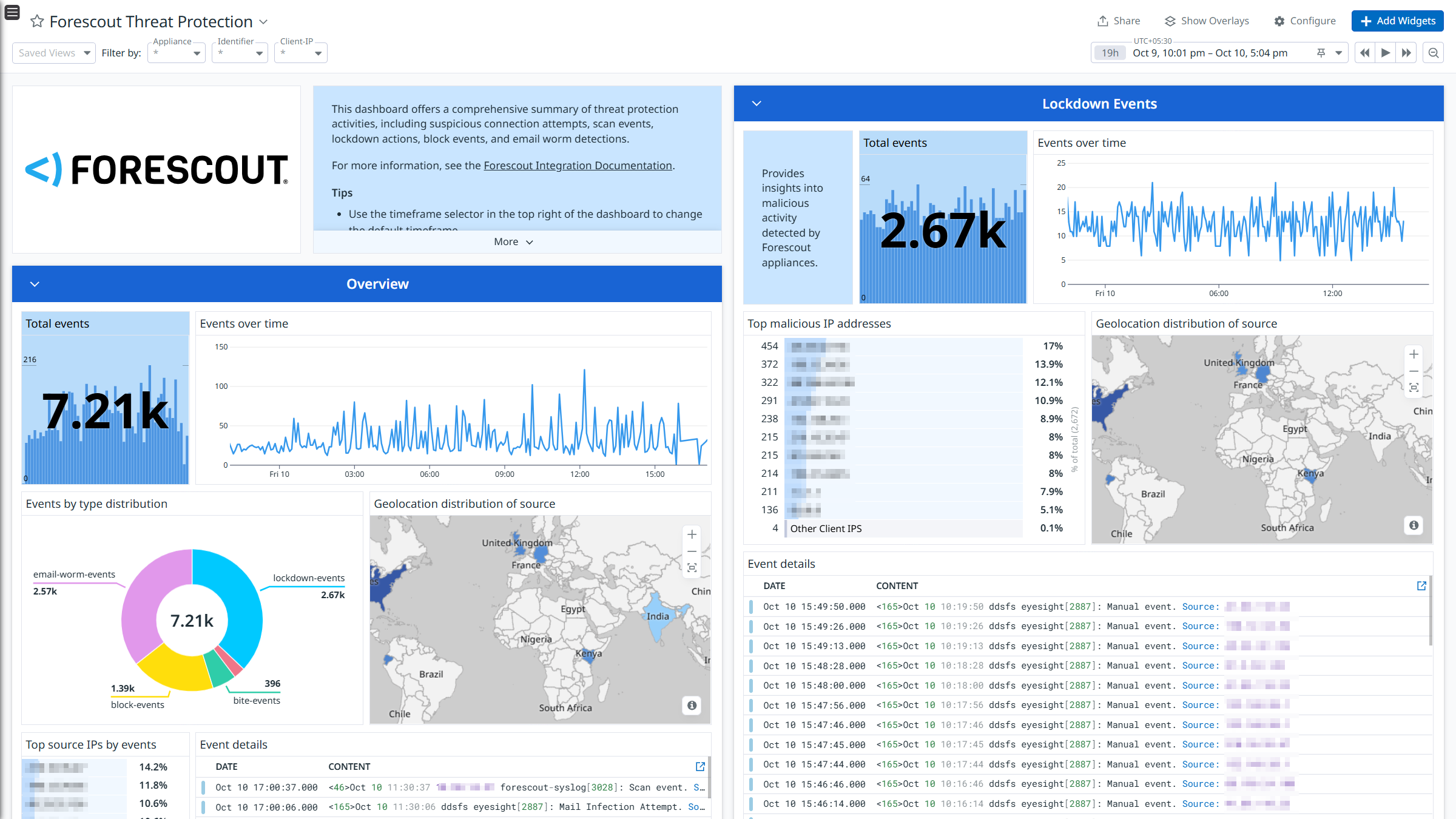
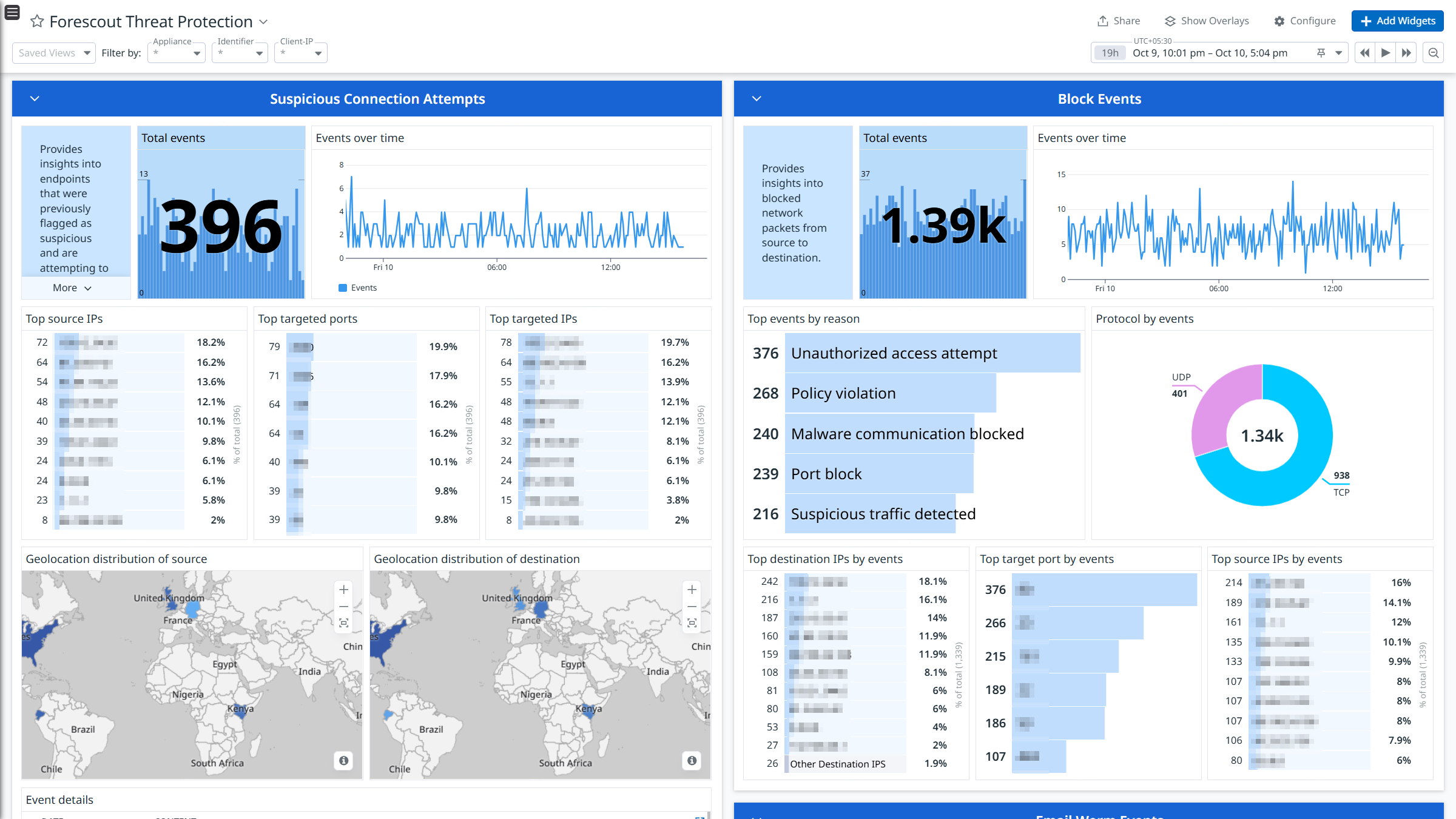
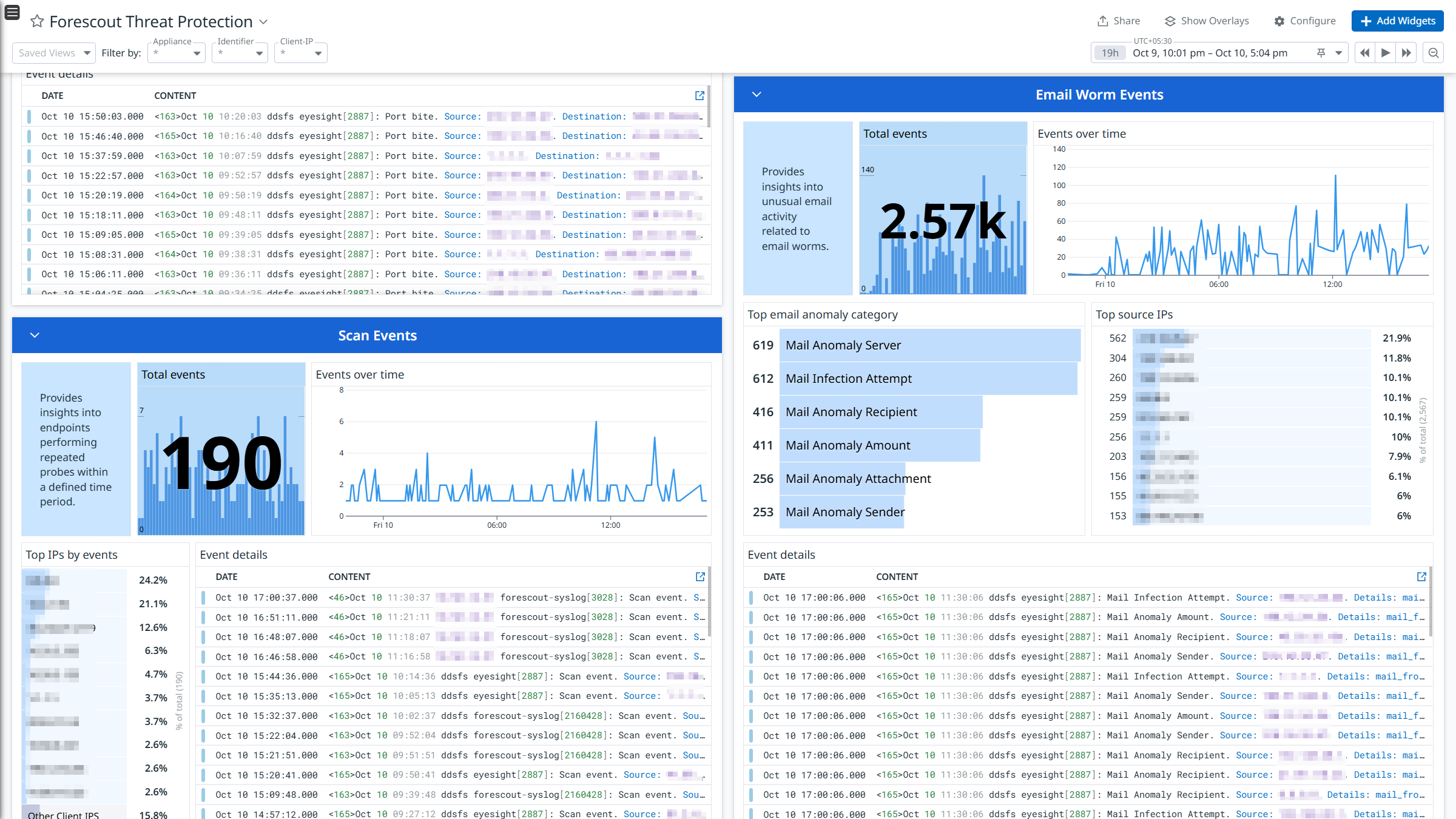
Forescout Threat Protection
Forescout Threat Protection
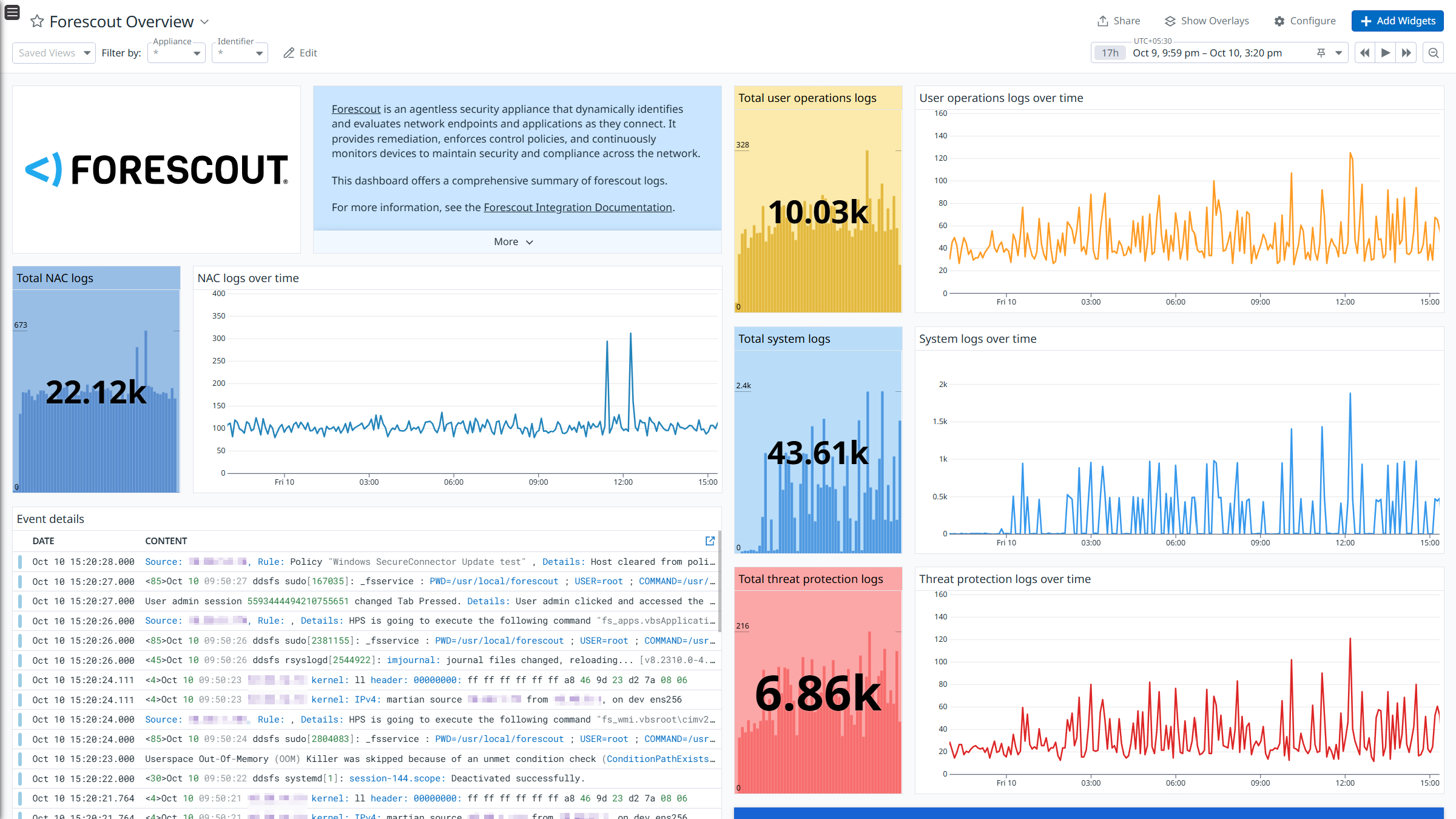
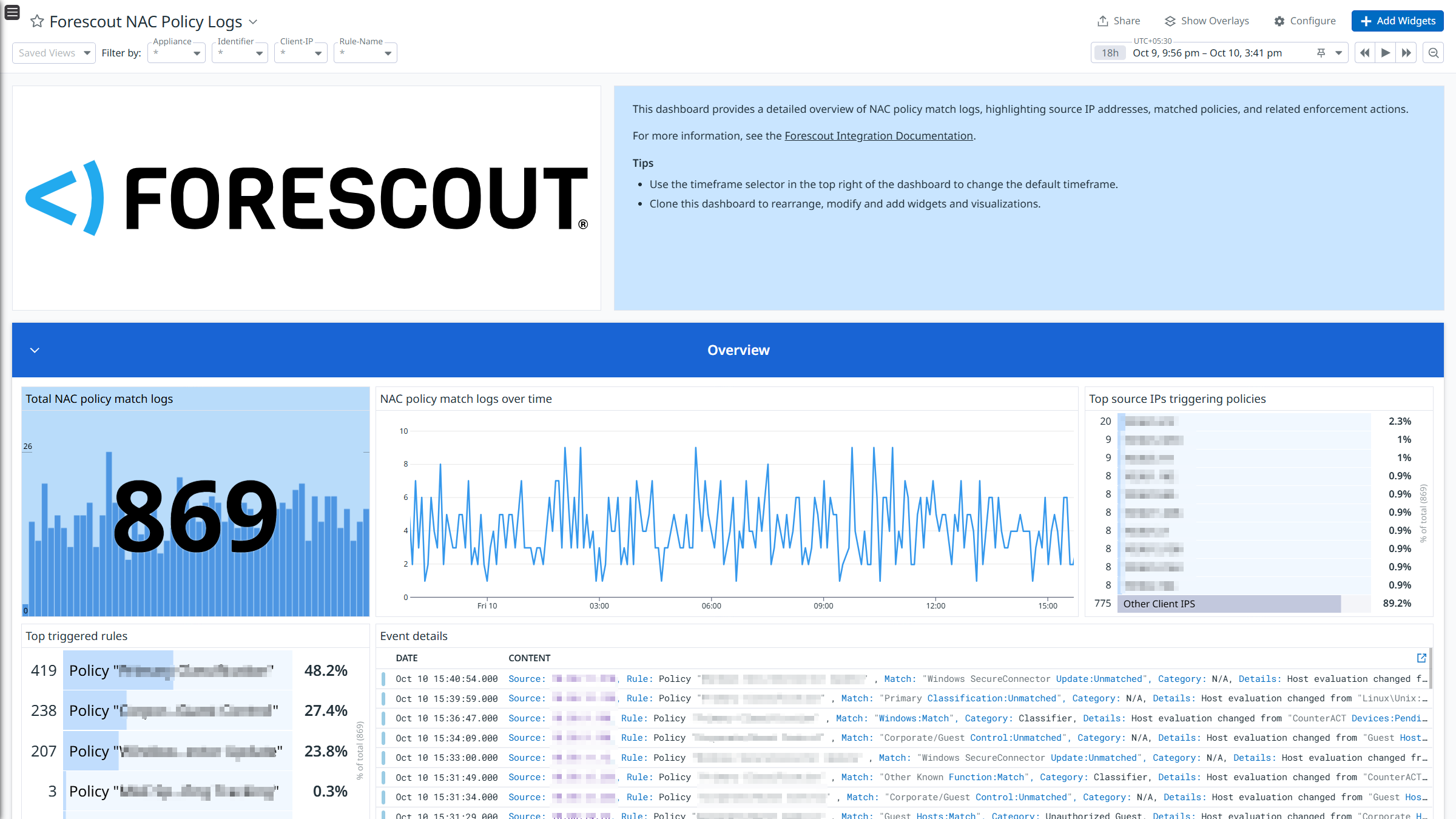
Forescout NAC Policy Logs
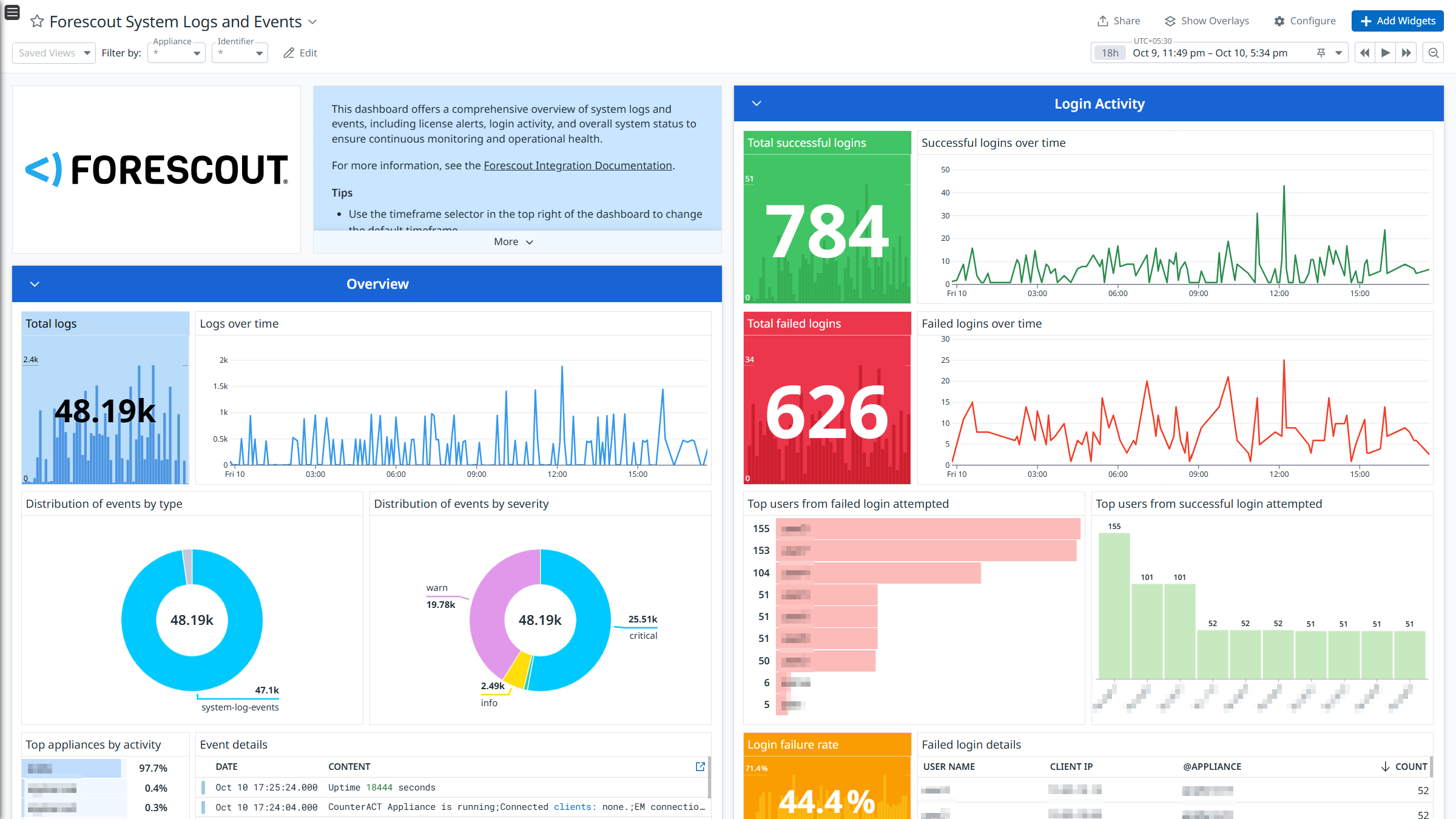
Forescout System Logs and Events
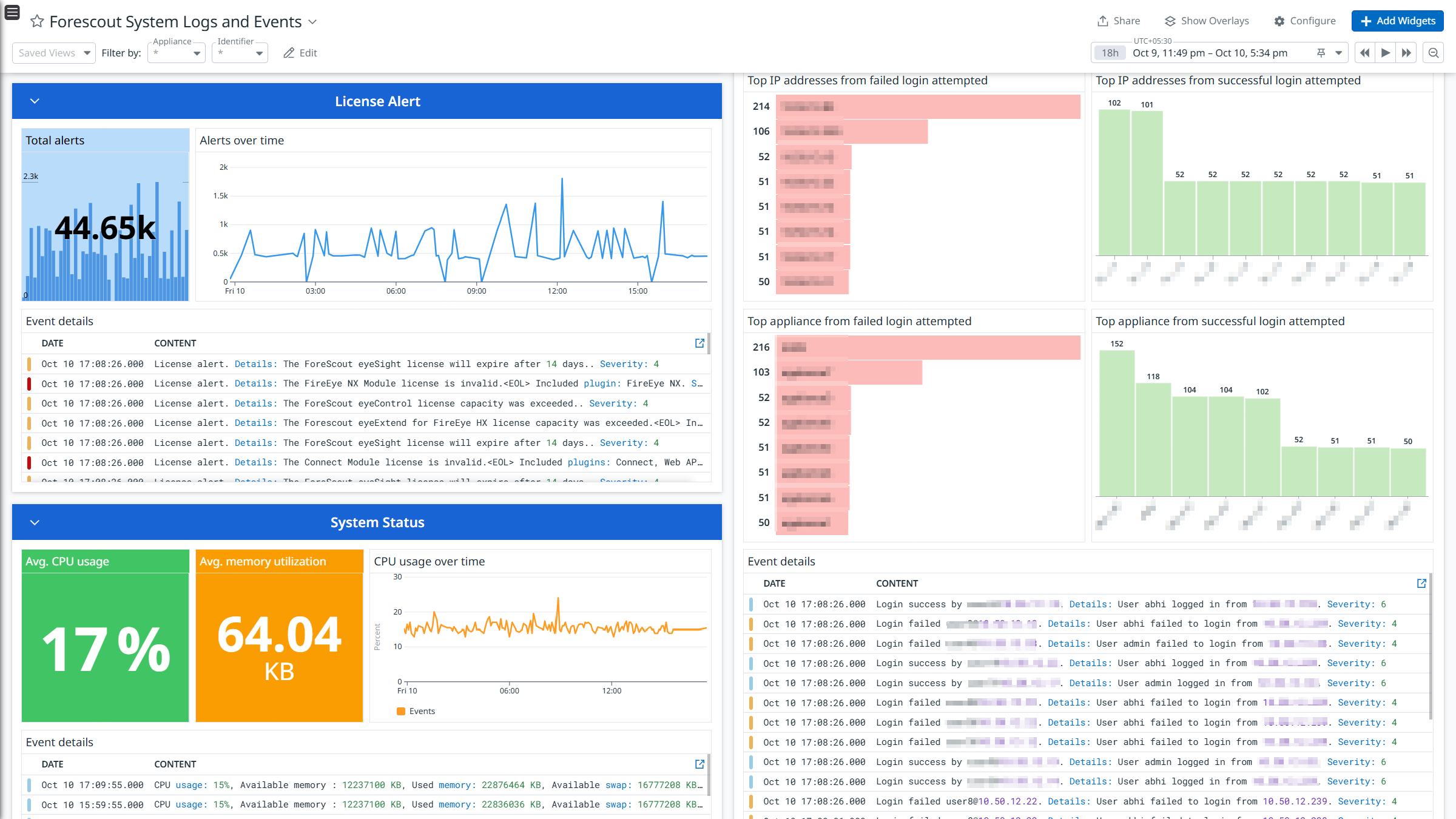
Forescout System Logs and Events
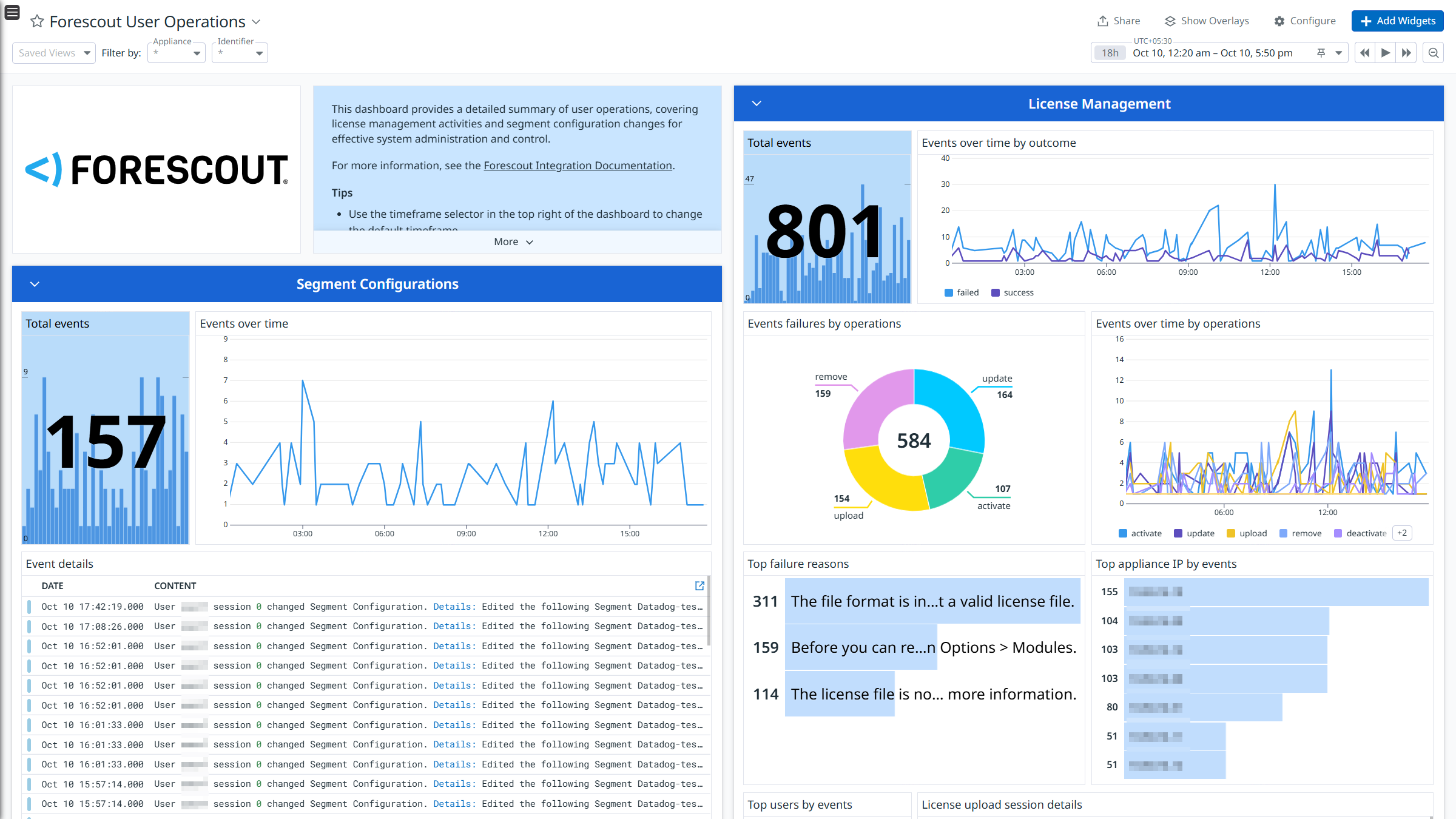
Forescout User Operations
Cette page n'est pas encore disponible en français, sa traduction est en cours.
Si vous avez des questions ou des retours sur notre projet de traduction actuel,
n'hésitez pas à nous contacter.
Overview
Forescout is a security appliance designed to dynamically detect and assess network endpoints and applications as they connect. It enforces control policies, provides remediation, and continuously monitors devices to ensure security and compliance across the network.
Integrate Forescout with Datadog’s pre-built dashboard visualizations to gain insights into NAC Policy, Threat Protection, System Logs, and User Operations logs. With Datadog’s built-in log pipeline, you can parse and enrich these logs to facilitate easy search and detailed insights. The integration can also be used for Cloud SIEM detection rules for enhanced monitoring and security.
Minimum Agent version: 7.73.0
Setup
Prerequisites
- The
Syslog plugin must be installed in your Forescout setup.
Configuration
Log Collection
Collecting logs is disabled by default in the Datadog Agent. Enable it in the datadog.yaml file with:
Add this configuration block to your forescout.d/conf.yaml file to start collecting your Forescout logs:
  logs:
    - type: tcp # or 'udp'
      port: <PORT>
      source: forescout
      service: forescout
See the sample configuration file (forescout.d/conf.yaml) for available options.
Note: Do not change the source and service values, as these parameters are integral to the pipeline’s operation.
- Restart the Agent.
Follow these steps if the Forescout appliance is not in the GMT timezone.
- Log in to the Forescout CounterACT appliance using root access via the command shell.
- Run the timezone configuration command:
- Follow the setup prompts and configure the options as needed:
Select different time-zone? (yes/no): yes
Choice (1-2) [1]: 2
Enter the GMT offset (number between -14 and 12): 0
Confirm Set time-zone to GMT? (yes/no) [yes]: yes

Reboot is required to fully apply the time-zone change.
Reboot now: yes
- Log in to the Forescout Console.
- Navigate to Tools > Options.
- Click Syslog from the options list.
- Go to the Send Events To section and click Add.
- Enter the details as below for syslog configuration:
- Server Address: Enter the IP address or hostname of the syslog server.
- Server Port: Specify the port number on which the syslog server is listening.
- Server Protocol: Select the protocol (UDP or TCP) to send the syslog messages.
- Identity: Set this to
forescout-syslog. - Facility: Set this to
syslog. - Severity: Set this to
info.
- Click OK.
- Go to the Syslog Triggers tab and configure the following:
- Ensure the Include only messages generated by the “Send Message to Syslog” action checkbox is deselected.
- In the Select format type for system log events and user operations dropdown, select Short.
- Under NAC Events, Threat Protection, System Logs and Events, and User Operations, include all the event types.
- Click Apply.
Note: The Server Port value should be similar to the port provided in the Log Collection section.
Validation
Run the Agent’s status subcommand and look for forescout under the Logs Agent section.
Data Collected
Logs
The Forescout integration collects NAC Policy, Threat Protection, System, and User Operations logs.
Metrics
The Forescout does not include any metrics.
Events
The Forescout integration does not include any events.
Troubleshooting
Need help? Contact Datadog support.